
How to Fix IPTV Buffering on Firestick 4K
Is your IPTV constantly buffering on Firestick 4K? A few seconds of buffering can quickly turn into a frustrating viewing experience, especially when streaming high-quality HD, Full HD or 4K video.
The good news is that IPTV buffering on Firestick 4K does not always mean that your Firestick is faulty. Buffering can be caused by Wi-Fi signal strength, router problems, network congestion, an outdated Fire TV software version, an IPTV app issue, insufficient available storage, or problems with the streaming source.
In this guide, we will go through the most effective ways to fix IPTV buffering on Firestick 4K, starting with the easiest solutions and moving toward more advanced troubleshooting steps.
Why Is IPTV Buffering on Firestick 4K?
IPTV buffering happens when the Firestick cannot receive video data quickly enough to maintain continuous playback. The player pauses while it waits for additional data to arrive.
Several factors can cause this problem:
- Weak Wi-Fi signal
- Router congestion
- Slow or unstable internet connection
- Too many devices using the network
- Firestick software problems
- Outdated IPTV application
- Application cache problems
- Limited available Firestick storage
- High-bitrate 4K streaming
- Streaming source or server congestion
- Incorrect IPTV application settings
Amazon’s own Fire TV troubleshooting guidance recommends checking the network, restarting the Fire TV device, restarting the modem/router and keeping the Fire TV software updated when streaming problems occur. :contentReference[oaicite:1]{index=1}
1. Restart Your Firestick 4K
The first thing to try when IPTV keeps buffering is a complete restart of your Firestick.
Temporary software processes, network connections and application states can sometimes cause playback problems. Restarting the device gives Fire TV a clean start.
How to Restart Firestick 4K
You can restart Fire TV through the settings menu:
Settings → My Fire TV → Restart
You can also disconnect the power adapter, wait about one minute and reconnect it. Amazon specifically recommends unplugging the Fire TV power adapter for one minute as a restart step for streaming and connectivity problems. :contentReference[oaicite:2]{index=2}
2. Restart Your Wi-Fi Router
If your Firestick is connected to Wi-Fi but IPTV continues buffering, the router may be the problem.
Routers can experience temporary connection problems, congestion or performance issues after running continuously for long periods.
How to Restart Your Router
- Unplug your modem and router.
- Wait approximately one minute.
- Plug the modem back in first.
- Wait until it reconnects to the internet.
- Plug the router back in.
- Wait for the Wi-Fi network to become available.
- Reconnect your Firestick and test IPTV again.
Amazon recommends restarting the modem and router when Fire TV has Wi-Fi or connectivity problems. :contentReference[oaicite:3]{index=3}
3. Check Your Internet Connection
Before changing IPTV settings, check whether your internet connection is stable. A speed test on another device connected to the same Wi-Fi network can help determine whether the problem is your network or the Firestick.
If several devices in your home are slow at the same time, your internet connection or router is more likely to be responsible.
If everything else works normally but one IPTV application keeps buffering, the problem may be specific to the application or streaming source.
4. Move Your Firestick Closer to the Router
Wi-Fi signal quality is one of the most common causes of streaming problems. Walls, furniture, appliances and distance can reduce the quality of the wireless connection.
If your Firestick is located far away from the router, try moving the router closer or reducing obstacles between the two devices.
Amazon also recommends moving the Fire TV device and router closer together when troubleshooting Wi-Fi connection issues. :contentReference[oaicite:4]{index=4}
5. Use Ethernet Instead of Wi-Fi
If you regularly stream high-quality IPTV content, a wired Ethernet connection can provide a more consistent network connection than Wi-Fi.
Depending on your Fire TV model, you may need a compatible Ethernet adapter. Amazon notes that some Fire TV devices require an Ethernet adapter for a wired connection. :contentReference[oaicite:5]{index=5}
Ethernet can be especially useful if your Firestick is located far from the router or if your Wi-Fi environment has a lot of interference.
6. Clear the IPTV App Cache
If IPTV buffering happens only inside one application, clearing its cache can be worth trying.
Temporary application data can accumulate over time. Amazon’s Fire TV troubleshooting guidance includes clearing application cache and data as a troubleshooting option for streaming problems. :contentReference[oaicite:6]{index=6}
How to Clear an App Cache on Firestick
- Open Settings.
- Select Applications.
- Select Manage Installed Applications.
- Choose your IPTV application.
- Select Clear Cache.
- Open the IPTV application again.
Be careful when selecting Clear Data. Clearing data may remove saved application settings or login information.
7. Update Your Firestick Software
Running an outdated Fire TV software version can sometimes create compatibility or application problems.
Amazon recommends checking for the latest Fire TV software when troubleshooting streaming problems. :contentReference[oaicite:7]{index=7}
On Fire TV, software updates are generally found under:
Settings → My Fire TV → About → Check for Updates
The exact menu wording can vary between Fire TV versions and device models.
8. Check Available Firestick Storage
A Firestick with very limited available storage can become difficult to manage, especially if many applications are installed.
Fire TV provides storage information through the device settings. Amazon’s Fire TV interface documentation notes that My Fire TV or Device & Software can be used to view available storage and perform device functions. :contentReference[oaicite:8]{index=8}
If your Firestick is nearly full, consider uninstalling applications that you no longer use.
9. Close Unused Applications
If you have many applications installed or recently used several demanding applications, restarting the Firestick can help return the device to a clean state.
Instead of trying to manage every background process manually, a complete Firestick restart is usually the simplest approach.
10. Reduce Network Congestion
Your Firestick may not be the only device using your internet connection. Smartphones, tablets, computers, game consoles, security cameras and other streaming devices can all consume bandwidth.
If several devices are downloading large files or streaming high-resolution video at the same time, IPTV may have less network capacity available.
Try This Test
- Pause downloads on other devices.
- Stop unnecessary streaming sessions.
- Restart the router.
- Restart the Firestick.
- Test IPTV again.
If buffering improves immediately, network congestion may have been contributing to the problem.
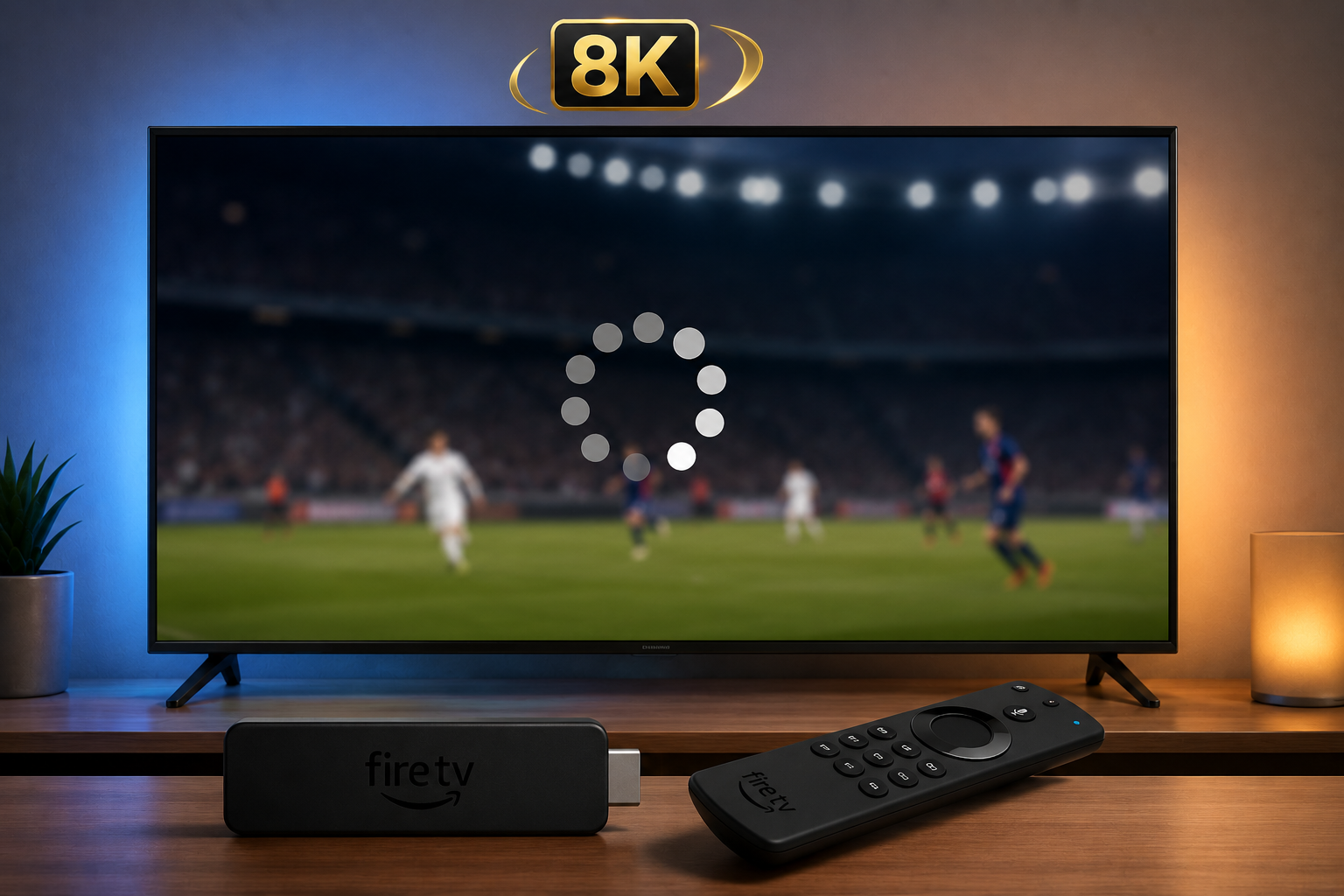
IPTV buffering troubleshooting guide for Firestick 4K
11. Check the IPTV Playlist or Xtream Codes
If the Firestick itself works normally but only your IPTV content buffers, check the connection information you entered into the IPTV application.
Depending on the application, you may be using an M3U playlist URL or an Xtream Codes API login.
For M3U, verify that the complete playlist URL was entered correctly. For Xtream Codes, verify the server URL, username and password.
If you want to understand the difference between these two methods, see our detailed guide: M3U Playlist vs Xtream Codes .
12. Test a Different Channel or Stream
An important troubleshooting test is to check whether every channel buffers or only certain channels.
If one channel buffers while others play normally, the problem may not be your Firestick or Wi-Fi connection.
If almost every channel buffers, investigate your network, application and device first.
13. Check 4K Streaming Settings
The Firestick 4K is designed to handle high-resolution video, but 4K streaming can require more bandwidth and more demanding video processing than lower resolutions.
Amazon’s developer documentation notes that 4K playback at high frame rates creates demanding timing requirements for the media pipeline on some Fire TV devices. :contentReference[oaicite:9]{index=9}
If buffering happens only with 4K content while lower-resolution streams work normally, test a lower-resolution stream if your authorized service provides one.
This can help determine whether the issue is related to network capacity, the specific stream, or the device/application playback path.
14. Check Your HDMI Connection
HDMI problems usually cause display or playback errors rather than traditional network buffering, but it is still worth checking if you experience video problems after changing your TV or Firestick setup.
Amazon’s streaming troubleshooting documentation notes HDCP requirements for HD and UHD/HDR playback. :contentReference[oaicite:10]{index=10}
Make sure the Firestick is connected securely and that your TV input is working correctly.
15. Reinstall the IPTV Application
If buffering is limited to one IPTV application, reinstalling it can help eliminate corrupted application data.
Amazon’s Fire TV documentation explains that installed applications can be managed through:
Settings → Applications → Manage Installed Applications. :contentReference[oaicite:11]{index=11}
Before removing an IPTV application, make sure you have your authorized M3U playlist or Xtream Codes information available so you can configure the application again.
16. Try Another Compatible IPTV Player
If your internet connection is stable and other streaming applications work normally, the IPTV application itself may be responsible for the buffering.
Testing another compatible IPTV player can help isolate the problem.
You can explore IPTV Players and streaming guides for information about different IPTV player applications and supported connection methods.
Make sure any application you choose supports your Fire TV device and your authorized playlist or account connection method.
17. Test Your Firestick on Another Network
One of the best ways to determine whether your home network is responsible for buffering is to temporarily test the Firestick on another reliable network.
For example, if practical, you can test it using a mobile hotspot.
If IPTV suddenly works normally on another network, your home router, Wi-Fi environment or internet service may be contributing to the problem.
If the exact same buffering occurs on another network, investigate the Firestick, IPTV application or streaming source.
18. Check Your Router Location
Router placement can have a major impact on Wi-Fi performance.
Avoid placing the router behind large objects, inside closed cabinets or directly next to devices that may interfere with wireless communication.
Ideally, the router should have a relatively clear path toward the Firestick.
19. Consider Ethernet for Stable IPTV Streaming
If you regularly watch high-quality IPTV streams and your Firestick is located near your router, Ethernet may be worth considering.
A wired connection eliminates many Wi-Fi variables and can make troubleshooting easier.
Amazon confirms that Ethernet connectivity is supported on some Fire TV devices through an Ethernet adapter. :contentReference[oaicite:12]{index=12}
20. Check Whether the Problem Is the Streaming Source
Not every buffering problem is caused by the Firestick.
If your internet connection is stable, the Firestick is updated, other apps stream normally and only one IPTV source experiences buffering, the issue may be related to that particular streaming source.
Test different authorized channels or streams. If only a specific stream buffers repeatedly, compare it with other available streams before changing your Firestick configuration.
Quick Firestick 4K Buffering Checklist
| Problem | Fix to Try |
|---|---|
| IPTV keeps buffering | Restart Firestick and router |
| Weak Wi-Fi | Move router closer or use Ethernet |
| One IPTV app buffers | Clear cache or reinstall the app |
| 4K streams buffer | Test a lower-resolution stream |
| All apps are slow | Check internet and router |
| IPTV playlist fails | Check M3U or Xtream Codes information |
| Firestick storage is nearly full | Remove unused applications |
| Problem remains | Test another network or compatible player |
What If IPTV Still Buffers After Everything?
If you have restarted the Firestick, restarted the router, checked your internet connection, cleared the IPTV application cache, updated Fire TV, checked storage and tested another network, you have already eliminated many common causes.
At this point, compare the behavior of different applications and streams. If other streaming applications work normally but one IPTV source continues buffering, the problem may be specific to that application or source.
If all streaming applications experience buffering, focus on your home network and internet connection.
Final Thoughts
Fixing IPTV buffering on Firestick 4K is usually a process of elimination. Start with the simple solutions: restart the Firestick, restart the router, check Wi-Fi and make sure Fire TV software is up to date.
Next, investigate the IPTV application. Clear its cache, verify your M3U or Xtream Codes information and reinstall the application if necessary.
If you are streaming 4K content, remember that higher-resolution playback can place greater demands on both the network and playback pipeline. Testing a lower-resolution stream can help identify whether 4K playback is contributing to the issue. :contentReference[oaicite:13]{index=13}
For network problems, Amazon recommends restarting the Fire TV device and network equipment, moving the Fire TV device closer to the router and using Ethernet where supported. :contentReference[oaicite:14]{index=14}
If you need more IPTV setup information, you can also explore 8KIPTV guides , CatchIPTV , and IPTV Players .
More IPTV Guides
Find more IPTV tutorials, player guides and troubleshooting resources for Firestick, Smart TV and Android TV.
Frequently Asked Questions
Why does IPTV keep buffering on my Firestick 4K?
Common causes include weak Wi-Fi, router congestion, unstable internet, application cache problems, outdated Fire TV software, limited storage, high-bitrate 4K streams or issues with the streaming source.
How do I stop IPTV buffering on Firestick?
Restart the Firestick and router, check your Wi-Fi connection, update Fire TV, clear the IPTV application’s cache and test another stream. Ethernet can also help provide a more consistent connection when supported.
Why does 4K IPTV buffer more than HD?
4K video generally requires more data and can place greater demands on the network and playback pipeline. Testing a lower-resolution stream can help determine whether the issue is related to 4K playback.
Should I clear the IPTV app cache?
Yes. If the problem appears to be limited to one IPTV application, clearing its cache is a reasonable troubleshooting step. Amazon also recommends clearing app cache and data for certain Fire TV streaming problems. :contentReference[oaicite:15]{index=15}
Is Ethernet better than Wi-Fi for IPTV on Firestick?
Ethernet can provide a more consistent connection by removing many Wi-Fi interference and signal-strength variables. Fire TV devices can use Ethernet through a compatible adapter where supported. :contentReference[oaicite:16]{index=16}