
Why Does IPTV Keep Buffering Even With Fast Internet?
Have you ever checked your internet speed and seen 100 Mbps, 300 Mbps, 500 Mbps, or even 1 Gbps, but your IPTV still keeps buffering? It can be extremely frustrating when a speed test says your connection is fast but live TV keeps freezing, loading, or dropping playback.
The important thing to understand is that fast internet does not always mean stable IPTV streaming. A speed test mainly tells you how quickly data can be transferred under the conditions of that particular test. IPTV streaming depends on much more than download speed.
The stream has to travel from its source to your IPTV application through multiple parts of the network. Your Wi-Fi, router, ISP routing, packet loss, latency, jitter, IPTV server, application and streaming device can all affect playback.
This guide explains why IPTV keeps buffering even with fast internet and shows you how to identify the real cause before changing random settings.
Why Does IPTV Buffer With Fast Internet?
The short answer is simple: IPTV needs a stable flow of data, not just a high maximum download speed.
Imagine that your internet connection can download at 500 Mbps during a speed test. That sounds more than enough for streaming. However, if your Wi-Fi connection briefly loses packets, experiences interference, or drops from 100 Mbps to a much lower rate for a few seconds, the IPTV player may not receive enough data to continue playback.
Live IPTV is particularly sensitive because the player is receiving a continuous stream close to real time. Short interruptions can empty the playback buffer quickly. Recent IPTV troubleshooting research also highlights stability, jitter, packet loss, Wi-Fi quality and the route to the streaming source as important factors beyond raw Mbps. :contentReference[oaicite:1]{index=1}
Fast Internet Speed vs Stable Internet Connection
One of the biggest misconceptions about IPTV buffering is assuming that more Mbps automatically means better streaming.
Download speed represents how much data your connection can transfer under certain test conditions. Stability describes how consistently that data arrives during actual playback.
For example, a stable 30 Mbps connection can sometimes provide a smoother stream than a connection that briefly reaches 300 Mbps but repeatedly suffers from packet loss and sudden drops.
This is why a speed test performed on your phone next to the router may look excellent while the IPTV application on a TV in another room still buffers.
1. Wi-Fi Can Be the Real Problem
Your internet connection may be fast, but the wireless connection between the router and your streaming device may not be stable.
Walls, floors, furniture, distance and nearby wireless networks can affect Wi-Fi performance. A device located several rooms away from the router can experience a much weaker connection than a phone standing directly beside it.
Wi-Fi interference can also create short interruptions that are difficult to notice during a normal speed test but very noticeable during live streaming. Current IPTV troubleshooting guides frequently identify Wi-Fi quality as one of the first areas to investigate when buffering occurs. :contentReference[oaicite:2]{index=2}
What You Can Try
- Move the router closer to your TV or streaming device.
- Use the 5 GHz Wi-Fi band when supported and appropriate.
- Reduce physical obstacles between the router and device.
- Restart the router.
- Test the device using Ethernet if possible.
2. Test Internet Speed on the Device That Is Buffering
If IPTV buffers on your Smart TV, Firestick, Android TV box or another device, perform your network test on that device whenever possible.
Testing your phone beside the router does not necessarily tell you how well the television is connected.
A useful troubleshooting method is to compare:
- Speed near the router.
- Speed on the streaming device.
- Wi-Fi versus Ethernet.
- Your normal network versus another network.
These comparisons can help identify whether the bottleneck is inside your home network or somewhere beyond it.
3. Packet Loss Can Cause IPTV Buffering
Packet loss occurs when some data packets traveling through a network fail to arrive correctly.
You can still have a high download speed while experiencing packet loss. Because video streaming depends on a continuous flow of data, missing packets can lead to interruptions, stuttering or playback pauses.
This is one reason why looking only at Mbps can be misleading. Recent technical explanations of IPTV buffering specifically point to packet loss and jitter as problems that can affect streaming even when average bandwidth looks strong. :contentReference[oaicite:3]{index=3}
4. Jitter Can Make a Fast Connection Feel Slow
Jitter describes variations in packet arrival time.
A connection with consistently low latency can be useful for streaming, but if the delay suddenly changes from one packet to another, the IPTV player may struggle to maintain smooth playback.
This is another reason a simple speed test cannot tell you everything about your IPTV connection.
If your stream freezes for a few seconds and then suddenly catches up, unstable delivery, jitter or packet loss may be more relevant than your maximum download speed.
5. Your Router May Be Congested
Your IPTV device may not be the only device using your internet connection.
At the same time, your home network could be handling:
- Smartphones
- Laptops
- Game consoles
- Security cameras
- Cloud backups
- Large downloads
- Other streaming devices
Even when your internet package is fast, heavy simultaneous network activity can affect the experience of a particular device, especially when the local Wi-Fi network is already busy.
Quick Test
- Pause large downloads.
- Stop unnecessary streaming sessions.
- Disconnect devices that are not currently needed.
- Restart the router.
- Test IPTV again.
6. Your IPTV Server May Be the Bottleneck
Sometimes your internet connection is perfectly fine and the problem is on the other side of the connection.
IPTV streams are delivered from remote infrastructure. If a particular server or streaming source is overloaded, users connected to that source may experience buffering even when their home internet connection is fast.
This is especially useful to remember when only one channel or one category buffers while everything else plays normally.
Server-side congestion is one of the recognized causes of IPTV buffering, particularly when multiple users are accessing the same infrastructure at busy times. :contentReference[oaicite:4]{index=4}
7. The Time of Day Can Reveal the Problem
Does your IPTV work perfectly in the morning but buffer every evening?
If so, the timing itself is an important clue.
Network congestion can increase during busy periods. Depending on the situation, congestion may occur within your home, your ISP network, the route to the streaming source, or the source’s own infrastructure.
Try testing the same stream at different times of day.
If buffering appears consistently during peak hours but disappears later, record that pattern before changing your IPTV application settings.
8. ISP Routing Can Affect IPTV
Your internet provider does not connect your device directly to every streaming server. Data can travel through different networks and routes before reaching the destination.
Two users with the same internet speed can therefore have different streaming experiences if their traffic reaches the source through different routes.
This is one reason a fast speed test against a nearby server does not necessarily represent the route used by your IPTV stream. :contentReference[oaicite:5]{index=5}
9. Your IPTV App Can Also Cause Buffering
Sometimes the network is fine but the IPTV application is struggling.
An outdated application, corrupted cache, poor player configuration or compatibility issue can affect playback.
Try the following:
- Restart the IPTV application.
- Clear the application’s cache if your device allows it.
- Update the application.
- Restart the streaming device.
- Test another compatible IPTV player.
If you are looking for different IPTV player options, you can explore the best IPTV players in 2026 .
10. Your Device May Be Struggling With High-Bitrate Video
A fast internet connection does not guarantee that every streaming device can decode every video stream smoothly.
This becomes more noticeable with high-bitrate 4K content, demanding codecs, older hardware or applications that are not optimized for the device.
A useful test is to compare the same content at different resolutions when authorized versions are available.
If 1080p playback is stable but a high-bitrate 4K stream repeatedly stutters, the issue may involve the stream bitrate, device decoding capabilities or network stability rather than your advertised internet speed.
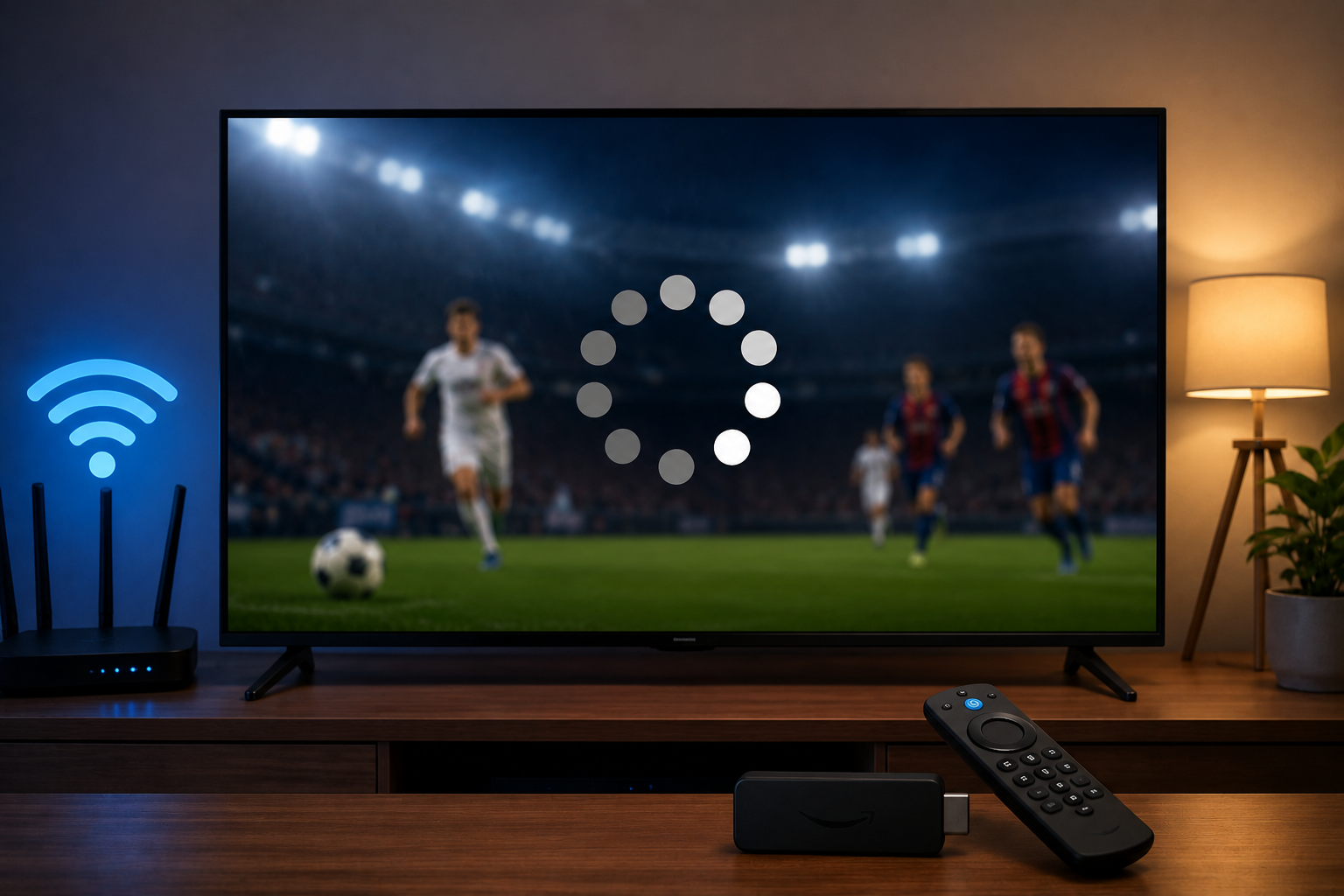
IPTV buffering can be caused by Wi-Fi, packet loss, jitter, routing, servers or device limitations.
11. M3U Playlist Problems Can Look Like Internet Problems
If your IPTV player uses an M3U playlist, an incorrect, expired or problematic playlist can create playback issues.
Check whether:
- The playlist loads correctly.
- Only specific channels buffer.
- All channels buffer.
- The playlist is updated correctly.
- The IPTV application supports the playlist format.
If one stream buffers while other streams from the same playlist work normally, that is an important clue that the issue may be specific to that stream.
12. Xtream Codes Problems Can Also Affect Playback
IPTV applications may also use Xtream Codes API credentials, usually consisting of a server URL, username and password.
If the account connects successfully but playback still buffers, compare several channels and categories instead of assuming that the login itself is the cause.
If you want to understand the difference between these two common IPTV connection methods, read: M3U Playlist vs Xtream Codes .
13. Try Ethernet Instead of Wi-Fi
One of the most useful diagnostic tests is switching from Wi-Fi to a wired Ethernet connection.
Ethernet removes many variables associated with wireless interference, distance and signal quality.
If IPTV becomes stable immediately after switching to Ethernet, your internet plan probably was not the main issue. The problem was more likely related to the wireless connection between your router and streaming device.
14. Try the Same IPTV Stream on Another Device
Another powerful troubleshooting method is to compare devices.
For example, test the same authorized stream on:
- Smart TV
- Firestick
- Android TV box
- Computer
- Another compatible mobile device
If the stream works smoothly everywhere except one device, investigate that device or its IPTV application.
If the same stream buffers on multiple devices using the same connection, investigate the network or source.
15. Try Another Network
Testing the same device on another reliable network can help isolate the problem even further.
If IPTV works normally on another connection but buffers on your home internet, the problem may be related to your router, Wi-Fi, ISP or routing path.
If it buffers on both networks, investigate the IPTV application, device or streaming source.
16. Should You Use a VPN for IPTV Buffering?
A VPN is not a universal buffering fix.
In some situations, a VPN can change the network route between your device and a destination. If a specific routing or traffic-management issue is involved, this may change the result.
However, a VPN can also add latency or reduce available throughput if the VPN server is overloaded or geographically distant.
Therefore, if you already use a VPN, compare the same stream with the VPN enabled and disabled where lawful and appropriate. If you do not use one, do not assume that installing a VPN will automatically eliminate buffering.
17. Change DNS Only When It Makes Sense
DNS affects how domain names are resolved. It can influence the time required to establish connections, but changing DNS does not magically increase the bandwidth available to your IPTV stream.
If your IPTV application has very slow initial connection or playlist-loading problems, DNS may be worth investigating. But if playback starts normally and then repeatedly buffers, look at Wi-Fi stability, packet loss, jitter, routing and the stream source first.
18. How to Find Out Where the Problem Really Is
Instead of changing ten settings at once, use a simple elimination process.
Test A: Does Everything Buffer?
If every channel and every IPTV application buffers, start with your device, Wi-Fi and network.
Test B: Does Only One Channel Buffer?
If one channel buffers while others work normally, the specific stream may be the problem.
Test C: Does Ethernet Fix It?
If Ethernet solves the problem, investigate Wi-Fi rather than upgrading your internet plan.
Test D: Does Another Device Work?
If another device plays the same stream smoothly, investigate the original device or IPTV application.
Test E: Does Another Network Fix It?
If a different network solves the problem, investigate your home network, ISP or routing.
Quick IPTV Buffering Diagnosis Table
| What You Notice | Possible Cause | First Test |
|---|---|---|
| Every channel buffers | Network, Wi-Fi, device or app | Restart router and test another network |
| One channel buffers | Specific stream/source | Test other channels |
| Wi-Fi buffers but Ethernet works | Wireless interference or weak signal | Improve Wi-Fi or use Ethernet |
| 4K buffers but HD works | Bitrate, device or network stability | Test lower resolution |
| Only one app buffers | App or configuration | Clear cache or test another player |
| Buffering only at peak hours | Network, routing or source congestion | Compare different times |
What Internet Speed Do You Actually Need for IPTV?
The exact bandwidth requirement depends on the stream’s resolution, bitrate, codec and other factors.
As a general troubleshooting reference, recent IPTV guides commonly use roughly 10 Mbps for HD and around 25 Mbps for 4K as practical minimum targets for a single stable stream. :contentReference[oaicite:6]{index=6}
However, having 100 Mbps or 500 Mbps does not automatically solve buffering. Stability, packet loss, jitter, Wi-Fi quality and the actual route to the source remain important.
When Should You Contact Your IPTV Provider?
Contact the service provider when your own network appears healthy but the problem consistently affects the service itself.
Before contacting support, collect useful information:
- Device model
- IPTV application name
- Channel or category affected
- Approximate time when buffering occurs
- Wi-Fi or Ethernet connection
- Whether other channels work
- Whether the same stream works on another device
This information is much more useful than simply saying “my IPTV is buffering.”
More IPTV Setup and Player Guides
If you are troubleshooting buffering because you are changing IPTV applications, our Best IPTV Players 2026 guide can help you compare compatible player options.
For Firestick and other device setup instructions, you can also check CatchIPTV installation guides , which cover Firestick, Android TV, Samsung, LG and other platforms. :contentReference[oaicite:7]{index=7}
You can also explore IPTV Players for additional player and streaming guides.
Final Thoughts
So, why does IPTV keep buffering even with fast internet? Because download speed is only one part of the streaming experience.
A fast connection can still suffer from weak Wi-Fi, packet loss, jitter, congestion, poor routing, device limitations, application problems or server-side issues.
The best approach is to diagnose the problem instead of immediately buying a faster internet package.
Start by testing the device that actually buffers. Compare Wi-Fi with Ethernet, test different channels, restart your router, try another compatible player and compare another network if possible.
If only one channel buffers, investigate the stream. If every IPTV service buffers on one device, investigate the device and network. If everything works on another network, investigate your home connection or ISP route.
And if your network and device are stable but the same streams repeatedly buffer, the streaming source or server may be the limiting factor. The goal is to find where the bottleneck actually is before changing settings that have nothing to do with the problem.
More IPTV Guides
Explore IPTV player guides, installation tutorials and troubleshooting resources for Smart TV, Firestick and Android TV.
Frequently Asked Questions
Why does IPTV buffer when my internet is fast?
Fast download speed does not guarantee stable streaming. Wi-Fi interference, packet loss, jitter, network congestion, routing problems, device limitations and the streaming source can all cause buffering.
Does a faster internet package stop IPTV buffering?
Not necessarily. If your current connection already has enough bandwidth, upgrading to a faster package may not solve a problem caused by Wi-Fi, packet loss, jitter, routing or server congestion.
Is Ethernet better than Wi-Fi for IPTV?
Ethernet can provide a more consistent connection because it removes many wireless signal and interference variables. It is a useful diagnostic test when IPTV buffers over Wi-Fi.
Why does only one IPTV channel buffer?
If other channels work normally, the issue may be specific to that stream or source rather than your home internet connection.
Why does IPTV buffer more at night?
Peak-hour congestion can occur within your home network, ISP network, routing path or streaming infrastructure. Compare the same stream at different times to identify a pattern.
Can an IPTV app cause buffering?
Yes. Application cache, outdated software, compatibility problems or player configuration can affect playback. Testing another compatible IPTV player can help isolate the problem.