
How to Fix IPTV Buffering on Firestick 4K
Is IPTV constantly buffering on your Firestick 4K? Follow this practical guide to troubleshoot Wi-Fi problems, app issues, 4K playback and streaming interruptions.
The good news is that IPTV buffering on Firestick 4K does not always mean your Firestick is faulty. Buffering can be caused by Wi-Fi signal strength, router problems, network congestion, outdated Fire TV software, an IPTV app issue, limited available storage, or problems with the streaming source.
In this guide, we will go through practical ways to fix IPTV buffering on Firestick 4K, starting with the easiest solutions and moving toward more advanced troubleshooting steps. You will also learn how to identify whether the problem comes from your home network, the app or a particular stream.
Why Is IPTV Buffering on Firestick 4K?
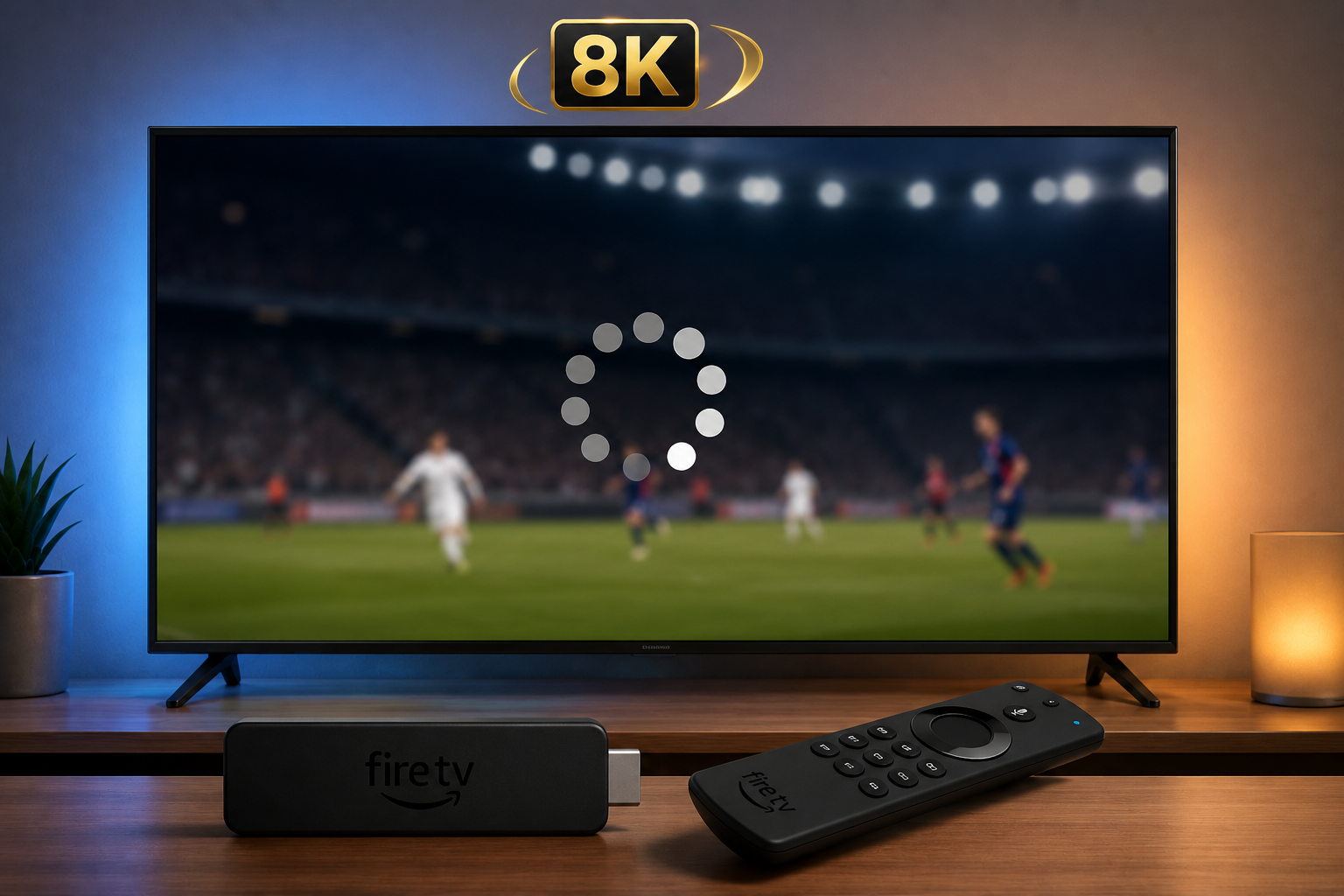
IPTV buffering happens when the Firestick cannot receive video data quickly enough to maintain continuous playback. The player pauses while it waits for additional data to arrive.
Common causes include:
- Weak Wi-Fi signal or an unstable internet connection.
- Router congestion or too many connected devices.
- Firestick software or IPTV application problems.
- Application cache issues or limited device storage.
- High-bitrate 4K streaming.
- Problems with a particular stream or streaming source.
The fastest way to narrow down the cause is to compare other apps and streams. If every streaming app struggles, start with the network. If only one IPTV app or channel buffers, focus on that app or source.
1. Restart Your Firestick 4K
The first thing to try when IPTV keeps buffering is a complete restart of your Firestick. Temporary software processes, network connections and application states can sometimes contribute to playback problems.
How to Restart Firestick 4K
Open the Fire TV settings and look for the restart option. On many versions, the path is:
You can also disconnect the Fire TV power adapter, wait approximately one minute and reconnect it. Use the power adapter recommended for your device.
After restarting, open the same IPTV app and test the same stream. Keeping the test consistent makes it easier to see whether the restart helped.
2. Restart Your Wi-Fi Router
If your Firestick is connected to Wi-Fi but IPTV continues buffering, the router may be contributing to the problem. Restarting network equipment can clear temporary connection problems.
How to Restart Your Router
- Unplug your modem and router.
- Wait approximately one minute.
- Reconnect the modem and allow it to connect.
- Reconnect the router if it is a separate device.
- Wait until your Wi-Fi network becomes available.
- Reconnect the Firestick and test IPTV again.
If your internet provider supplied a combined modem and router, you may only have one device to restart. Avoid resetting the device to factory settings unless you know how to restore its configuration.
3. Check Your Internet Connection
Before changing IPTV settings, check whether your internet connection is stable. Run a speed test on a phone or computer connected to the same Wi-Fi network. This will not measure every aspect of streaming performance, but it can reveal an obvious connection problem.
If several devices are slow at the same time, your internet connection or router may be responsible. If other services work normally but one IPTV app buffers, investigate that application or streaming source.
Check More Than Download Speed
Speed is only one part of the picture. Wi-Fi interference, packet loss, sudden speed drops and high network latency can interrupt playback even when a speed test looks acceptable. If possible, test more than once and at the time buffering usually happens.
4. Move Your Firestick Closer to the Router
Walls, furniture, appliances and distance can reduce Wi-Fi signal quality. Try moving your router to a more open location or reducing obstacles between the router and Firestick.
If your router supports both 2.4 GHz and 5 GHz Wi-Fi, test the available network bands. The best option depends on distance, interference, router capability and the layout of your home.
A 5 GHz connection may provide more capacity at shorter distances, while 2.4 GHz may reach farther in some homes. Neither band is automatically best in every environment.
5. Use Ethernet Instead of Wi-Fi
A wired Ethernet connection can provide a more consistent network connection than Wi-Fi in some environments. Depending on your Fire TV model, you may need a compatible Ethernet adapter.
Ethernet can be especially useful if your Firestick is far from the router or your Wi-Fi environment has a lot of interference. It cannot, however, fix problems originating from the streaming source itself.
If you are considering an adapter, check device compatibility before purchasing it. Test playback again after connecting the Firestick to the wired network.
6. Clear the IPTV App Cache
If IPTV buffering happens only inside one application, clearing its cache is worth trying. Temporary application data can sometimes contribute to unexpected behavior.
How to Clear an App Cache
- Open Settings.
- Select Applications.
- Choose Manage Installed Applications.
- Select your IPTV application.
- Choose Clear Cache, if available.
- Open the application again and test playback.
7. Update Your Firestick Software
An outdated Fire TV software version can sometimes cause compatibility or application problems. Open your device settings and look for the system software update option.
On many devices, the menu is under Settings → My Fire TV → About → Check for Updates. The exact wording can vary by device model and software version.
It is also worth checking whether the IPTV app itself has an update available through the official app source. Avoid installing unfamiliar update files from untrusted websites.
8. Check Available Firestick Storage
A Firestick with very limited available storage can become difficult to manage, especially if many applications are installed.
Check the device storage settings and uninstall applications you no longer use. Keep the IPTV application you need and avoid removing applications unless you understand what they do.
After removing unused apps, restart the device and test playback again. Freeing storage is not guaranteed to fix network buffering, but it can help when the device is low on space or generally performing poorly.
9. Restart Before Managing Background Apps
If you have recently used several applications or your Firestick feels slow, restarting the device is a simple first step. It can return the device to a cleaner state without requiring you to use unfamiliar task-management tools.
If performance problems continue across multiple applications, check storage, software updates and the stability of your network. Avoid apps that promise to improve streaming by making unsupported claims about device performance.
10. Reduce Network Congestion
Smartphones, tablets, computers, game consoles, security cameras and other streaming devices can all use bandwidth. When multiple devices download large files or stream high-resolution video at the same time, less capacity may be available to your Firestick.
Try This Test
- Pause large downloads on other devices.
- Stop unnecessary streaming sessions.
- Restart the router if necessary.
- Restart the Firestick.
- Test IPTV again using the same stream.
If playback improves, network congestion may have contributed to the problem. If it makes no difference, continue checking the app and streaming source.
11. Check the IPTV Playlist or Xtream Codes
If the Firestick itself works normally but IPTV content buffers or fails to load, check the connection information entered into the IPTV application.
Depending on the application, you may use an M3U playlist URL or an Xtream Codes API login. Verify that the playlist URL, server address, username and password were entered correctly.
Do not post your playlist URL or login details publicly. These details may provide access to your account or subscription.
For more information, see our guide: M3U Playlist vs Xtream Codes.
12. Test a Different Channel or Stream
Check whether every channel buffers or only certain channels. If one channel buffers while others play normally, the problem may not be your Firestick or Wi-Fi connection.
If almost every channel buffers, investigate the network, application and device first. Testing multiple authorized streams can help narrow down the cause.
For a useful comparison, test a stream that normally plays reliably and then test the stream that has been buffering. Note whether the issue occurs at the same time or only on one source.
13. Check 4K Streaming Settings
The Firestick 4K is designed to handle high-resolution video, but 4K streaming can require more bandwidth than lower-resolution video. The actual requirements depend on the stream's bitrate, encoding, network conditions and playback application.
If buffering happens only with 4K content while lower-resolution streams work normally, test a lower-resolution stream if your authorized service offers one.
This test can help determine whether network capacity, the specific stream or the device's playback path is contributing to the problem. It does not prove that your device is faulty.
14. Check Your HDMI Connection
HDMI problems usually cause display or playback errors rather than traditional network buffering. However, it is worth checking the connection if video problems began after changing your TV or Firestick setup.
Make sure the Firestick is connected securely and that the selected TV input is working correctly. HD and UHD/HDR playback may also depend on the compatibility of the display and HDMI connection.
If the picture goes black, flickers or displays an error instead of pausing to load, the issue may be different from ordinary internet buffering.
15. Reinstall the IPTV Application
If buffering is limited to one IPTV application, reinstalling it may help eliminate corrupted application data or installation problems.
Before removing an application, make sure you have your authorized M3U playlist or Xtream Codes information available so you can configure the app again. Only install applications from sources you trust.
After reinstalling, test the app before changing several settings at once. Changing one thing at a time makes it easier to identify what helped.
16. Try Another Compatible IPTV Player
If your internet connection is stable and other streaming applications work normally, the IPTV player itself may be contributing to the problem. Testing another compatible player can help isolate the issue.
Explore IPTV Players and streaming guides for information about player applications and connection methods.
Make sure any application you choose supports your Fire TV device and your authorized playlist or account connection method. A different player may help with app-specific problems, but it will not fix a slow network or unavailable source.
17. Test Your Firestick on Another Network
Temporarily testing your Firestick on another reliable network can help determine whether your home connection is contributing to buffering. If practical, you could test it using a mobile hotspot, keeping in mind that mobile data may be limited.
If playback improves on another network, investigate your home router, Wi-Fi environment or internet service. If the same problem persists, look more closely at the Firestick, IPTV application or streaming source.
Keep the test brief and monitor mobile data usage if you use a hotspot, particularly when testing high-resolution streams.
18. Check Your Router Location
Router placement can affect Wi-Fi performance. Avoid placing the router behind large objects, inside closed cabinets or directly beside devices that may interfere with wireless communication.
Where possible, place the router in an open, central location with a relatively clear path toward the Firestick. If the router has external antennas, use the positioning recommended by its manufacturer.
19. Consider Ethernet for More Consistent Streaming
If you regularly watch high-quality IPTV streams and your Firestick is near your router, Ethernet may be worth considering. A wired connection removes many Wi-Fi signal and interference variables.
Check that your particular Fire TV model supports a compatible Ethernet adapter before purchasing additional equipment. Ethernet can improve local connectivity, but performance still depends on your internet service and the streaming source.
20. Check Whether the Problem Is the Streaming Source
Not every buffering problem is caused by the Firestick. If your internet connection is stable, the device is updated, other applications stream normally and only one IPTV source buffers, the issue may be related to that particular source.
Test different authorized channels or streams. If only a specific stream repeatedly buffers, compare it with other available streams before changing your Firestick configuration.
If the problem appears to be on the provider's side, contact the provider through its official support channel. Explain which stream is affected, when the problem happens and which troubleshooting steps you have already tried. Do not send account passwords publicly.
Quick Firestick 4K Buffering Checklist
Use this table to match common symptoms with a practical troubleshooting step.
| Problem | Fix to Try |
|---|---|
| IPTV keeps buffering | Restart Firestick and router |
| Weak Wi-Fi | Improve router placement or try Ethernet |
| One IPTV app buffers | Clear cache or reinstall the app |
| 4K streams buffer | Test a lower-resolution stream |
| All apps are slow | Check internet and router performance |
| Playlist fails to load | Verify M3U or Xtream Codes details |
| Storage is nearly full | Remove unused applications |
| Problem remains | Test another network or compatible player |
A Simple Diagnostic Test
Try these three tests in order:
- Open another streaming app on the same Firestick.
- Test another authorized stream in your IPTV app.
- Test the Firestick on another reliable network if possible.
These comparisons can help you separate a device or network issue from an app-specific or source-specific problem.
What If IPTV Still Buffers After Everything?
If you have restarted the Firestick and router, checked the connection, cleared the IPTV application cache, updated Fire TV, checked storage and tested another network, you have already eliminated many common causes.
Compare the behavior of different applications and streams. If other streaming applications work normally but one IPTV source continues buffering, the issue may be specific to that application or source.
If all streaming applications experience buffering, focus on your home network and internet connection. If the Firestick also freezes in menus, check available storage, device temperature, power supply and system updates.
Final Thoughts
Fixing IPTV buffering on Firestick 4K is usually a process of elimination. Start with the simple solutions: restart the Firestick, restart the router, check Wi-Fi and make sure Fire TV software is up to date.
Next, investigate the IPTV application. Clear its cache, verify your M3U or Xtream Codes information and reinstall the application if necessary.
If you are streaming 4K content, remember that higher-resolution playback can place greater demands on both the network and playback pipeline. Testing a lower-resolution stream can help identify whether 4K playback is contributing to the issue.
For more information, explore 8KIPTV guides, CatchIPTV and IPTV Players.
Frequently Asked Questions
Why does IPTV keep buffering on my Firestick 4K?
Common causes include weak Wi-Fi, router congestion, unstable internet, application cache problems, outdated Fire TV software, limited storage, high-bitrate 4K streams or issues with the streaming source.
How do I stop IPTV buffering on Firestick?
Restart the Firestick and router, check your Wi-Fi connection, update Fire TV, clear the IPTV application's cache and test another stream. Ethernet can also help provide a more consistent connection when supported.
Why does 4K IPTV buffer more than HD?
4K video generally requires more data and can place greater demands on the network and playback pipeline. Testing a lower-resolution stream can help determine whether the issue is related to 4K playback.
Should I clear the IPTV app cache?
Yes. If the problem appears limited to one IPTV application, clearing its cache is a reasonable troubleshooting step. Be aware that clearing app data may remove saved settings or login information.
Is Ethernet better than Wi-Fi for IPTV on Firestick?
Ethernet can provide a more consistent connection by removing many Wi-Fi interference and signal-strength variables. Compatibility depends on the Fire TV device and adapter.
Why does only one IPTV channel buffer?
If other channels play normally, the problem may be specific to that stream or its source rather than your Firestick or home network.
Can a slow internet connection cause IPTV buffering?
Yes. An unstable or congested connection may not deliver video data consistently enough for uninterrupted playback, especially for higher-bitrate streams.
Will a VPN stop IPTV buffering?
Not necessarily. A VPN may change your network route, but it can also reduce available speed. First determine whether the issue comes from Wi-Fi, your internet connection, the app or the stream. Follow applicable laws and service terms when using a VPN.
Why does IPTV buffer at night?
If buffering happens mainly during busy evening hours, network congestion or changes in the streaming source may be involved. Compare other apps, test your connection at different times and contact your internet provider if the wider connection also slows down.
Should I factory reset my Firestick?
A factory reset should usually be a last resort because it removes installed apps and saved settings. Try restarting the device, clearing the relevant app cache, updating software and testing another network first.
Looking for an IPTV Free Trial?
Explore the 8K IPTV free trial page to review the available trial details before deciding whether the service meets your needs.
Review the applicable service terms and make sure the content you access is legally available in your region.