
IPTV Not Working on Samsung Smart TV: Common Fixes
Is your IPTV app not opening, refusing your playlist, showing an empty channel list or constantly buffering on your Samsung Smart TV? Follow these practical troubleshooting steps to identify the cause and get back to streaming.
Is your IPTV not working on Samsung Smart TV? The issue can appear in several ways. Your IPTV app may not open, the channel list may be empty, your M3U playlist may fail to load, Xtream Codes credentials may be rejected, or channels may constantly buffer.
Many Samsung IPTV problems can be investigated without replacing your television. Common causes include an unstable internet connection, an application problem, incorrect login information, outdated TV software, Smart Hub issues or compatibility with the Samsung Tizen platform.
This guide starts with simple checks and then covers more specific problems, so you can choose the steps that match what you see on your TV instead of changing settings unnecessarily.
Why Is IPTV Not Working on Samsung Smart TV?
Before changing settings, identify exactly what is happening. The phrase "IPTV not working" can describe several different problems, and each one may need a different solution.
- The IPTV application will not open.
- The application crashes or freezes.
- The app is missing from the Samsung App Store.
- The M3U playlist fails to load.
- Xtream Codes login details are rejected.
- The channel list appears empty.
- Channels load but constantly buffer.
- Electronic Program Guide information is missing.
- Only certain channels work.
- The application stopped working after a software update.
For example, an empty channel list usually calls for checking playlist details, while buffering calls for checking the connection and stream. If the app itself crashes, focus on the application and TV software first.
1. Check Your Samsung TV Internet Connection
The first thing to check when IPTV is not working on Samsung TV is the internet connection. IPTV applications need a stable connection to retrieve playlists, account information and streaming data.
Your TV may show that it is connected to Wi-Fi even when the internet connection is unstable. This can result in slow loading, an empty playlist, buffering or connection errors.
How to Check Network Status
On many Samsung Smart TV models, the network status menu is available through:
The exact menu names can vary by model and software version. Use the TV's network status test to help determine whether the problem is between the TV and router or between the router and the internet.
Test Another App
Open another streaming application, such as YouTube, and see whether it connects normally.
- If multiple apps cannot connect, investigate the internet connection or router first.
- If other apps work but the IPTV app does not, investigate the IPTV app, playlist or streaming source.
- If apps open but video buffers, test the connection stability and Wi-Fi signal.
2. Restart Your Samsung Smart TV
A proper restart can resolve temporary software problems. Samsung TVs may enter standby when you press the power button briefly, so a full restart can be more useful when applications freeze or fail to load.
Method 1: Use the Remote
- Turn the TV on.
- Press and hold the Power button on the Samsung remote.
- Keep holding it until the TV turns off and starts again, if your model supports this method.
- Open the IPTV application and test it again.
Method 2: Unplug the TV
- Turn off the Samsung TV.
- Unplug the TV's power cable.
- Wait approximately 30 seconds.
- Reconnect the power cable.
- Turn on the TV and open the IPTV application.
This is a useful first step because it is simple and does not normally remove your apps or saved login information.
3. Check Whether the IPTV App Supports Samsung Tizen
Samsung Smart TVs use the Tizen operating system, and application availability can vary depending on the TV model, software version and country or region.
If you cannot find your IPTV application in the Samsung App Store, search for its exact name in the Apps section. Confirm that your television is connected to the internet and has the latest available software update.
Not every IPTV player is available for every Samsung TV. An application designed for Android TV, for example, may not have a compatible Samsung Tizen version.
If the app is not supported on your model, look for an officially supported alternative or a compatible external streaming device. Check compatibility before purchasing any equipment.
For additional IPTV guides and resources, visit 8KIPTV.
4. Update Your Samsung TV Software
Outdated TV software can cause compatibility problems or application errors. Updating your Samsung TV may provide bug fixes and software improvements.
On many Samsung models, the update option is available under:
The exact menu names can differ by model and software version. If an update is available, follow the instructions on the screen and allow the installation to finish.
After updating:
- Restart the TV.
- Open the IPTV application again.
- Test the same playlist or channel that previously failed.
If the problem began immediately after an update, check whether the application has a compatibility notice or a newer version available.
5. Reinstall the IPTV Application
If the IPTV app opens but crashes, freezes or refuses to load the playlist, reinstalling it may help resolve an application-specific problem.
How to Reinstall an App on Samsung TV
- Press the Home button on the remote.
- Open Apps.
- Open the Apps settings if the option is available.
- Find your IPTV application.
- Select Delete or Reinstall, depending on the options available.
- Search for the application again in the Samsung App Store.
- Install it again if it is available for your model.
- Enter your IPTV connection details again if required.
If the application cannot be deleted or reinstalled, consult the instructions for your specific Samsung TV model.
6. Check Your M3U Playlist URL
If the IPTV application opens correctly but the channel list is empty, the problem may be related to your M3U playlist.
An M3U playlist URL is an address used by a compatible IPTV player to retrieve playlist information. If the URL is incomplete, entered into the wrong field or no longer valid, the application may fail to load channels.
Common M3U Problems
- The M3U URL was copied incorrectly.
- A character is missing from the address.
- An extra space was added at the beginning or end.
- The playlist is expired or no longer available.
- The URL was entered into the wrong field.
- The IPTV application does not support M3U playlists.
- The playlist server is temporarily unavailable.
How to Troubleshoot an M3U Playlist
- Open the IPTV application's playlist settings.
- Compare the saved URL with the original information provided by your authorized service.
- Check for accidental spaces or missing characters.
- Save the corrected details.
- Refresh or reload the playlist.
Do not publish your complete playlist URL on public websites or forums. It may contain account-specific information.
7. Check Your Xtream Codes Login
Some IPTV applications use the Xtream Codes API instead of a single M3U playlist URL.
Depending on the application, the required information usually includes:
- Server URL: the address supplied by your service.
- Username: your assigned account username.
- Password: your assigned account password.
Make sure each item is entered into the correct field. Do not paste the complete M3U URL into an Xtream Codes username or password field.
What If the Login Is Rejected?
- Check the spelling of the username and password.
- Check that the server address is correct.
- Look for accidental spaces.
- Confirm that the account is active with the service provider.
- Check whether the application supports Xtream Codes connections.
If the same credentials work on another compatible device, the problem may be related to the Samsung app, its configuration or the TV's network connection.
For more information about connection formats, explore IPTV player guides.
8. Fix an Empty Channel List on Samsung TV
An empty channel list often means that the app has opened but has not successfully retrieved or displayed the playlist. It does not automatically mean the television is broken.
Follow These Steps
- Close the IPTV application.
- Restart the Samsung TV.
- Open the IPTV app again.
- Use the app's refresh or reload playlist option.
- Verify the M3U URL or Xtream Codes information.
- Confirm that the playlist or account is still available.
- If possible, test the same connection details in another compatible application.
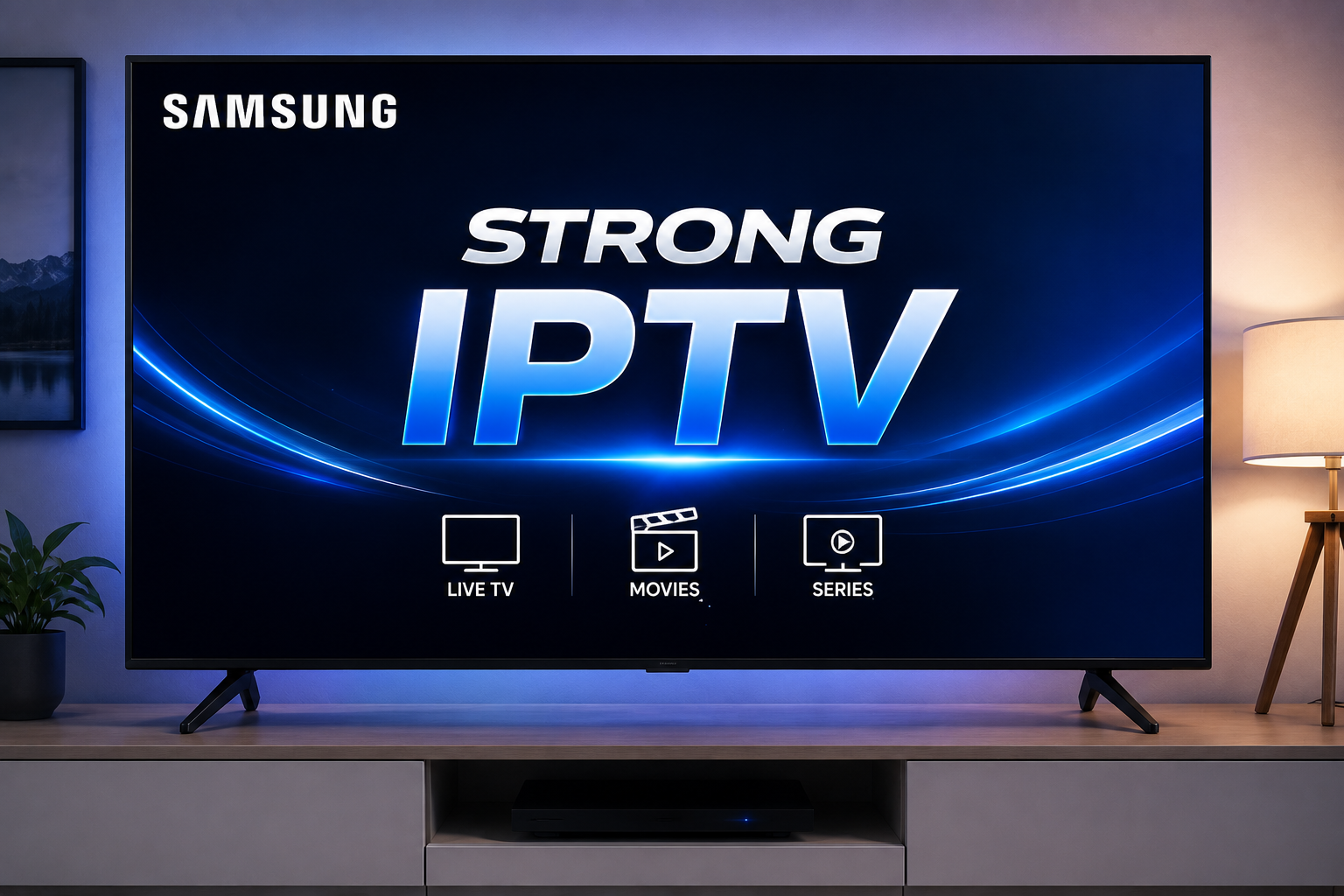
If the same playlist works on another device but not on your Samsung TV, check whether the TV application supports the playlist format and whether the TV can reach the service reliably.
9. Fix IPTV Buffering on Samsung Smart TV
If IPTV loads correctly but channels constantly buffer, the problem may be related to the network, application or streaming source.
Try These Buffering Fixes
- Restart your router and Samsung TV.
- Check whether other streaming applications also buffer.
- Move the router to a more open location if the Wi-Fi signal is weak.
- Pause large downloads and other high-bandwidth activities.
- Use Ethernet if your TV setup supports it.
- Test another authorized channel or stream.
- Check whether the problem affects one stream or every stream.
How to Identify the Cause
If several streaming applications buffer, focus on your home network or internet service. If only one IPTV application buffers, investigate the app and its connection settings. If only one channel buffers, the problem may be specific to that stream or source.
A fast speed test does not guarantee uninterrupted streaming. Wi-Fi interference, connection instability and stream availability can also affect playback.
10. Check Samsung Smart Hub
Smart Hub is part of Samsung's smart TV platform. Problems with Smart Hub may affect application installation, launching and saved app information.
If multiple Samsung applications are malfunctioning, a Smart Hub reset may be worth considering after you have tried simpler troubleshooting steps.
Depending on your model, the option may be located in a menu similar to:
The location and availability of this option vary by model and software version. Consult your TV's instructions if you cannot find it.
Do not start with a Smart Hub reset if only one channel is buffering. First identify whether the problem is limited to a particular stream or application.
11. Fix an IPTV App That Is Slow or Freezing
If the IPTV application becomes slow while browsing, freezes when opening channels or takes a long time to load, the issue may be related to temporary software problems, the app itself or the TV's available resources.
Try the following steps in order:
- Restart the TV using a soft reset.
- Check for available TV software updates.
- Close and reopen the IPTV application.
- Reinstall the app if it continues to malfunction.
- Check whether other Samsung apps also freeze.
- Consider Smart Hub troubleshooting only if the issue persists across apps.
Starting with a restart is preferable because it is less disruptive than deleting apps or resetting Smart Hub.
12. Fix Missing EPG Information
If channels work but the EPG (Electronic Program Guide) is empty, your IPTV player may still be functioning correctly. The issue can be related to guide data, playlist configuration or application compatibility.
Try these checks:
- Look for a refresh or reload guide option inside the application.
- Check whether the playlist or account includes EPG data.
- If a separate EPG source is required, verify that it is entered correctly.
- Check the application's guide settings and supported formats.
- Allow the app time to retrieve the guide after refreshing it.
Not every IPTV setup provides guide information in the same way. Check the instructions for your particular application and playlist format.
13. IPTV App Missing from the Samsung App Store
If an IPTV application is no longer visible in the Samsung App Store, availability may depend on your TV model, software version or region.
What to Check
- Confirm that the TV is connected to the internet.
- Search for the exact application name.
- Check for available Samsung TV software updates.
- Confirm that the app supports your model and region.
- Check the app developer's official information for compatibility details.
Do not assume that every application available on Android TV is also available on Samsung Tizen. If an app is not supported, look for an officially supported alternative or a compatible external streaming device.
Avoid installing unfamiliar files or changing system settings without understanding the security and compatibility risks.
14. Test Another Compatible IPTV Player
If your IPTV credentials work elsewhere but one Samsung TV application continues to fail, testing another compatible player can help determine whether the issue is specific to that application.
Before choosing another player, check that it supports:
- Your Samsung TV model and Tizen version.
- Your connection method, such as M3U or Xtream Codes.
- The playback features you need.
- Installation through a trusted and appropriate source.
You can explore IPTV Players and streaming guides to learn more about different player options and supported features.
A different app may help with application-specific problems, but it will not fix an incorrect playlist, an unavailable stream or an unstable internet connection.
15. Try a Different Network
Temporarily connecting your Samsung TV to another reliable network can help determine whether your home internet connection is contributing to the problem. A compatible mobile hotspot may be useful for a brief test, but monitor your mobile data usage.
Understand the Result
- IPTV works on the second network: Investigate your home router, Wi-Fi signal or internet service.
- The same problem continues: Investigate the application, playlist, account, TV software or compatibility.
- Other apps also fail on both networks: Check the TV's software and general network configuration.
This test is most useful when you compare the same app and stream under similar conditions. It can narrow down the cause, although it may not identify the exact fault by itself.
16. Check Whether the Problem Affects One Channel or All Channels
This is one of the most useful checks when diagnosing IPTV problems on Samsung Smart TV.
If one channel fails while others work normally, the TV's internet connection may be fine. The issue could be specific to that channel, its stream or the source providing it.
If every channel fails, check your playlist or login information, the IPTV application and the network connection.
Test several authorized streams before changing major TV settings. This simple comparison can prevent unnecessary application reinstalls or Smart Hub resets.
17. Check Date, Time and Account Information
If an application reports a connection or authentication error, review its login details and account status. Depending on the app and service, incorrect device settings or an expired account may also interfere with access.
- Verify the server address, username and password.
- Check whether your subscription or authorized access is still active.
- Make sure the TV's date and time settings are correct if the app relies on secure connections.
- Restart the app after correcting any settings.
Do not share your password or complete playlist URL in a public support request. If you need help from your service provider, use its official support channel.
Quick Samsung IPTV Troubleshooting Checklist
Use this table to match the symptom on your television with a sensible first step.
| Problem | First Fix to Try |
|---|---|
| IPTV app will not open | Restart the Samsung TV and check for updates. |
| App keeps freezing | Restart, update or reinstall the app. |
| App missing from Samsung Store | Check region and device compatibility. |
| M3U playlist will not load | Check the complete URL and refresh the playlist. |
| Xtream Codes rejected | Verify the server, username and password. |
| Empty channel list | Refresh the playlist and check credentials. |
| IPTV constantly buffers | Check Wi-Fi, router performance and the stream. |
| EPG is missing | Check guide settings and refresh EPG data. |
| Only one channel fails | Test other channels and check the affected stream. |
| Several Samsung apps malfunction | Check TV software and consider Smart Hub troubleshooting. |
Recommended Troubleshooting Order
- Identify whether the app, playlist or playback is failing.
- Check the internet connection using another app.
- Restart the TV.
- Verify M3U or Xtream Codes information if the playlist fails.
- Update the TV software.
- Reinstall the IPTV app if the problem remains app-specific.
- Investigate Smart Hub only if simpler steps fail or several apps are affected.
This order starts with low-risk checks and leaves more disruptive steps until later.
When Should You Reset Samsung Smart Hub?
Resetting Smart Hub should not be the first step when IPTV does not work. Start by restarting the TV, checking the network, updating the software and reinstalling the affected application where appropriate.
If multiple Samsung apps continue to behave incorrectly after those checks, a Smart Hub reset may be worth considering.
Before resetting, make sure you have the details needed to sign in again and restore any required applications. The reset can remove saved Smart Hub information and downloaded apps.
If the problem affects only one IPTV channel, a Smart Hub reset is unlikely to be the most useful first test.
Final Thoughts
When IPTV is not working on Samsung Smart TV, the best approach is to identify the exact symptom before changing settings.
Start with the basics: check the internet connection, restart the TV, update Samsung software and confirm that the IPTV application is compatible with your model.
If the app opens but the playlist does not load, check your M3U URL or Xtream Codes credentials. If channels load but buffer, investigate the network and compare other streams. If the application freezes or crashes, try updating or reinstalling it.
Reserve Smart Hub resets for persistent problems, especially when several Samsung applications are affected. This helps avoid removing saved settings when a simpler solution may be enough.
For additional IPTV setup resources, explore 8KIPTV guides, CatchIPTV, 8K IPTV Italy and IPTV Players. These are separate websites, so check each site's own information and terms before using its services.
Frequently Asked Questions
Why is IPTV not working on my Samsung Smart TV?
Common causes include an unstable internet connection, outdated TV software, an IPTV app problem, incorrect M3U or Xtream Codes information, Smart Hub issues or application compatibility. Identify the exact symptom before changing settings.
How do I restart a Samsung Smart TV?
On supported models, press and hold the Power button on the remote until the TV restarts. Alternatively, unplug the TV for about 30 seconds, reconnect it and test the app again.
Why is my IPTV channel list empty on Samsung TV?
Check the M3U playlist URL or Xtream Codes credentials first. Refresh the playlist and confirm that the application supports your connection method.
Why does IPTV keep buffering on Samsung TV?
Buffering can be caused by weak Wi-Fi, network congestion, router problems, application issues or the streaming source. Test other streaming apps and channels to narrow down the cause.
Why does my IPTV app not appear in the Samsung App Store?
Application availability can vary by Samsung TV model, software version and region. Check the exact app name, update your TV and confirm compatibility with Samsung Tizen.
Can I use an M3U playlist on Samsung Smart TV?
You can use an M3U playlist when the IPTV application installed on your Samsung TV supports that format. Check the app's supported connection methods before entering your playlist details.
What should I do if Xtream Codes login is rejected?
Check the server address, username and password, making sure each value is entered into the correct field. Confirm that your authorized account is active and that the app supports Xtream Codes.
Why are my IPTV channels working but the EPG is empty?
The Electronic Program Guide may require separate data or specific app settings. Refresh the guide and check that the EPG source is configured correctly for your playlist and player.
Should I reset Samsung Smart Hub if IPTV does not work?
A Smart Hub reset may help with persistent application problems, especially when multiple apps are affected. Try restarting the TV, checking the network, updating software and reinstalling the app first.
Why does IPTV work on another device but not on my Samsung TV?
The Samsung app may use different settings or have different compatibility requirements. Check the TV's network connection, the app's supported formats, the playlist details and available software updates.
Looking for an IPTV Free Trial?
Visit the 8KIPTV free trial page to review the available trial details before deciding whether the service suits your setup. Check the service terms and compatibility information before subscribing.
Use only services and content you are legally authorized to access in your region.