
8K VIP Player is the app used with the Strong 8K IPTV server. If you searched for “8K VIP Player”, “8K player” or “8K app”, this page explains what it is, who needs it, and how to get it running on your device. The full step-by-step with screenshots is in our installation tutorial.
What is 8K VIP Player?
An IPTV server does not show video by itself. You need a player app to log in and play the channels. 8K VIP Player is the app that goes with the Strong 8K server. You enter your subscription details in it, and it loads the channels, the movies and the series. It is meant to be simple, so that you do not have to build a playlist by hand.
If you prefer another player you already know, the service also works with other common IPTV players. See the IPTV apps page for the list.
Who should use it?
- New customers who want the easiest setup for the Strong 8K server
- People who tried other apps and had trouble with playlist settings
- Anyone moving to a new TV, Fire Stick or Android box who wants a quick reinstall
Which devices does it fit?
The app is used mainly on Android-based devices: Android TV boxes, Google TV, Fire TV and Fire Stick, and Android phones and tablets. These are the devices covered step by step in the tutorial. For other devices such as Samsung and LG Smart TVs, Apple devices and computers, use a compatible IPTV player from the apps page and sign in with the same subscription.
Before you install
- Have an active subscription or the 24-hour free trial
- Keep your login details from the email or message we sent you
- Connect your device to the internet
- On Fire Stick, allow installs from outside the store, as shown in the tutorial
How to install, in short
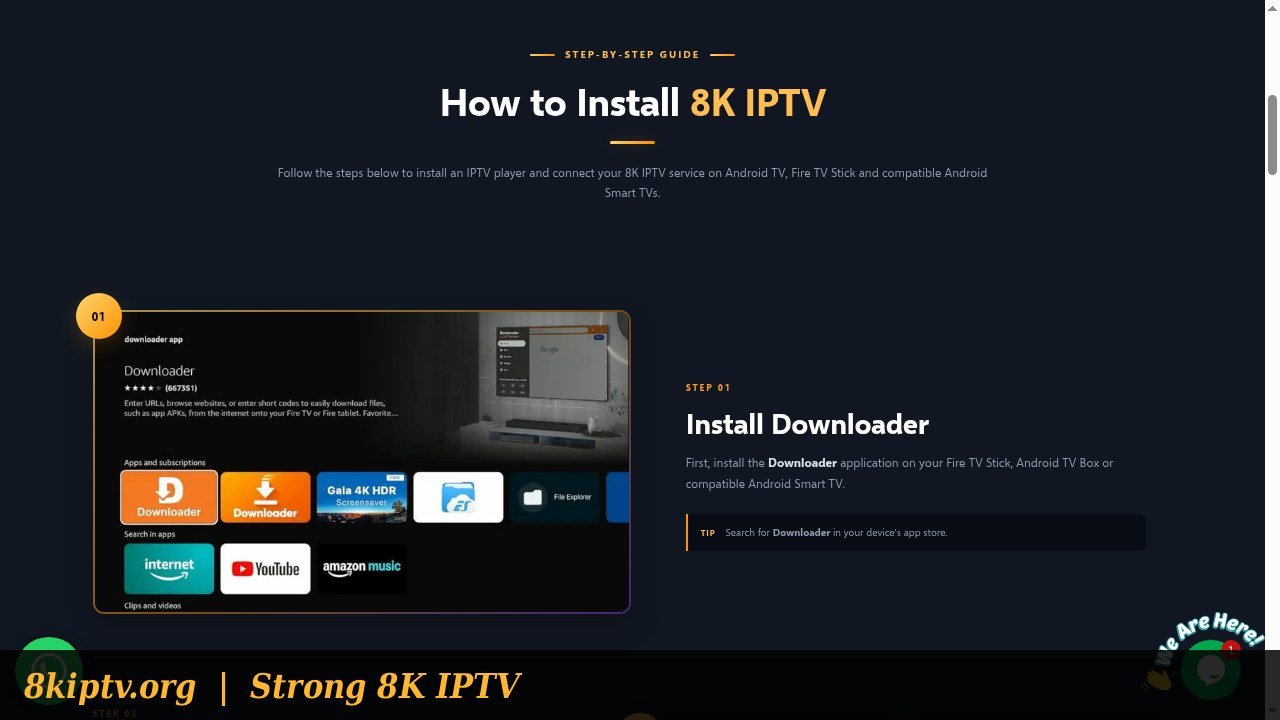
On Fire Stick and many Android TV boxes, the usual route is the Downloader app.
- Install the Downloader app from your device store
- Allow Downloader to install apps from unknown sources in the device settings
- Open Downloader and enter the 8K Player VIP code from the tutorial (listed there as 2057169 at the time of writing)
- Wait for the file to download and press Install
- Open the app and sign in with your subscription details
The tutorial page has a screenshot for each of these steps, so you can match what you see on your TV.
Signing in
Open the app, choose the option to add your account, and type the username and password from your subscription. Check upper and lower case, because the login is case sensitive. If the app asks for an Xtream or playlist option, follow the screens shown in the tutorial. After you save, your channels load in a minute or two the first time.
Tips for a smooth first start
- Restart the device after install, then open the app
- Wait for the first channel list to finish loading before judging speed
- If you see an empty list, check the login for typing mistakes
- Keep the app updated through the same source you installed it from
Common problems
The app will not install
Almost always the unknown-sources setting is off. Turn it on for Downloader only, then try again.
Login does not work
Copy the details again from your message, remove spaces at the ends, and make sure you are using the latest login. If it still fails, contact support and we will check the account.
Channels load slowly
Restart the router, move the device closer, or use a cable. A weak connection is the most common cause. Read our guide on why IPTV keeps buffering for more fixes.
Is it safe?
Only download apps from the link or code given on our installation tutorial, and avoid random copies on other sites. The app is the official one for this server. If you are unsure about a file you found elsewhere, ask support first.
Next step
Get your login with the free trial, open the installation tutorial, and follow the steps for your device. If you get stuck at any point, write to support and we will walk you through it.
Frequently asked questions
Is 8K VIP Player the same as the subscription?
No. The subscription is your access to the Strong 8K server. The app is what you use to watch it. You need both: the login from a subscription or trial, and a player to use it.
Do I have to use this app?
No. It is the simplest route for the Strong 8K server, but other compatible players also work. If you already like another player, you can use it with the same login.
Why does the app need a code and not an app store link?
On Fire TV and many Android boxes it is installed from outside the store. The Downloader code makes that quick with a TV remote. The code is listed on the tutorial page.
Will it work on my Samsung or LG TV?
The Downloader route is for Android-based devices. For Samsung and LG, check which compatible player your TV store offers on the apps page, or plug a Fire Stick into the TV.
What if I change my login later?
Open the playlist in the app, choose Edit, update the username and password, save and reload. The tutorial shows this with screenshots.
Keeping the app healthy
- Restart the device every week or two
- Clear the app cache if menus feel slow
- Make sure the device has free storage
- Reinstall using the tutorial if the app stops opening
If anything on this page does not match what you see on your screen, write to support from the contact page with a photo of the screen.
Setting up your favourites and layout
After the first sign-in, spend five minutes on the setup. Mark the channels you watch most as favourites so you do not scroll through thousands of names each time. If the app offers categories, hide the countries you never watch. A shorter list loads faster and is easier to use with a remote. These small steps make a big difference on devices with limited memory.
Updating and reinstalling
If the app stops opening after a system update, the simplest fix is a clean reinstall. Remove the app, open Downloader again, enter the code from the tutorial and install again. Your subscription is not affected, because it lives on the server. You only need to enter your username and password again.
Using it on a second device
You can install it on a second Android-based device, such as a bedroom Fire Stick, and sign in with the same details. Remember that the number of devices streaming at once is set by your plan. If you want to watch on two screens together, check the connection count on the plan pages.
Quick answers
Does it cost anything? The app is used with your subscription or trial. You do not pay inside Downloader or inside the installer.
How long does the install take? A few minutes on a normal connection, plus the time to load your channels the first time.
Can I use it without internet? No. IPTV streams over the internet, so you need a connection while you watch.
Where do I get help? Use the contact page and include your device model and a photo of the screen. That helps us answer in one message.
3 responses