
M3U Playlist vs Xtream Codes: What’s the Difference?
M3U Playlist vs Xtream Codes: What’s the Difference? If you are setting up an IPTV player for the first time, you may have seen two common connection methods: M3U Playlist and Xtream Codes. Although both can be used to connect a compatible IPTV player to streaming content, they work in different ways. Understanding the difference between M3U Playlist vs Xtream Codes can make IPTV setup much easier, especially when configuring a Smart TV, Android TV, Firestick, smartphone, tablet, or computer. In this guide, we explain what an M3U playlist is, what Xtream Codes are, how they differ, how EPG and VOD work, which method is easier to configure, and which option may be better for your IPTV player. Important: M3U and Xtream Codes are connection methods or formats. They do not themselves provide television channels or subscriptions. Always use content and services that you are authorized to access. M3U Playlist vs Xtream Codes: Quick Answer The simplest way to understand the difference is: M3U Playlist: Usually a playlist URL or file containing a list of media or channel stream addresses. Xtream Codes: Usually a server URL combined with a username and password that a compatible application uses to communicate with a server API. An M3U playlist is primarily focused on delivering a list of streams and related metadata. Xtream Codes provides a more structured way for a compatible application to retrieve information such as live TV categories, VOD, series and EPG data when supported. If you are looking for an IPTV player that supports different connection methods, you can also check our guide to the best IPTV players in 2026. What Is an M3U Playlist? M3U is a playlist format commonly used to organize multimedia content. In IPTV applications, an M3U playlist can contain a list of channels or other media entries together with their corresponding stream URLs. When you receive an M3U URL, a compatible IPTV player can download the playlist and read the information contained inside it. Depending on how the playlist was created, it may include channel names, groups, logos and other metadata. What Information Can an M3U Playlist Contain? Channel names Stream URLs Channel categories Channel logos EPG identifiers Other playlist metadata One reason M3U remains popular is its flexibility. Many media players and IPTV applications can import an M3U playlist URL, although compatibility depends on the particular application. Why Is M3U Popular for IPTV? One of the main advantages of an M3U playlist URL is its broad compatibility. Depending on the application, M3U playlists can be used on Android TV, Smart TVs, Fire TV devices, computers, smartphones and tablets. Another advantage is portability. In many applications, you only need to paste one playlist URL rather than entering several separate credentials. The downside is that M3U URLs can sometimes be very long. Typing a long URL using a television remote can be inconvenient, and large playlists may also be more difficult to organize manually. What Are Xtream Codes? Xtream Codes, often referred to as an Xtream Codes API login, is a structured connection method supported by many IPTV applications. Instead of entering one complete M3U playlist URL, users generally enter three separate pieces of information: Server URL Username Password A compatible IPTV application can then communicate with the server and request available information. Depending on the service and application, this can include Live TV categories, channels, movies, series and EPG information. M3U vs Xtream Codes: Main Differences Feature M3U Playlist Xtream Codes Connection method Playlist URL or file Server + username + password Setup Usually one URL Usually three fields Channel list Contained in playlist Retrieved through compatible API Categories Depends on playlist metadata Usually structured by server EPG May require additional configuration Available when supported VOD Depends on playlist/application Structured support when available Compatibility Very broad Requires compatible application How Does an M3U Playlist Work? The process is relatively simple. First, a user obtains an M3U playlist URL from an authorized service or creates their own playlist. The URL is then entered into an IPTV player that supports M3U. The application downloads the playlist and parses the information inside it. If the playlist contains channel groups, logos or EPG identifiers, a compatible player can use that metadata to create a more organized interface. The important concept is that the playlist contains the list of available entries. This is why M3U is often considered a simple and portable IPTV playlist solution. How Does Xtream Codes Work? Xtream Codes uses a different approach. Instead of supplying the player with one large playlist, the user enters the server address and account credentials. A compatible application can then communicate with the server API and request information. Depending on the implementation, this may include: Live TV categories Live channels Movies and VOD Series and episodes Electronic Program Guide information Account information This structured approach can make navigation easier because the application can organize content into separate sections rather than treating everything as one large playlist. EPG: M3U vs Xtream Codes EPG stands for Electronic Program Guide. It provides information about television programs, including program titles and schedules. With an M3U playlist, EPG support depends on the playlist metadata and the IPTV application. Some setups may require a separate XMLTV EPG source. With Xtream Codes, compatible applications can often retrieve EPG information through the service’s structured API when that information is available. However, an Xtream Codes login does not automatically guarantee a complete EPG. The quality and availability of guide information depend on the service, application and configuration. VOD and Series: M3U or Xtream Codes? Another important difference can appear when using Video on Demand (VOD) and series. An M3U playlist can contain movie or media stream entries, but the amount of information and organization depends on how the playlist was created. A compatible Xtream Codes application can retrieve structured movie and series information. Depending on the service, this can include categories, seasons, episodes and additional metadata. If you regularly browse movies and series, a structured interface can be more
IPTV Not Working on Samsung Smart TV: Common Fixes
IPTV Not Working on Samsung Smart TV: Common Fixes Is your IPTV not working on Samsung Smart TV? You are not alone. IPTV problems on Samsung Smart TVs can appear in several different ways. The IPTV app may not open, the channel list may be empty, your M3U playlist may fail to load, Xtream Codes credentials may be rejected, or channels may constantly buffer. The good news is that many Samsung IPTV problems can be fixed without replacing your television. In most cases, the cause is related to the internet connection, the IPTV application, incorrect login information, outdated TV software, Smart Hub problems, or compatibility with the Samsung Tizen platform. In this guide, we will explain the most common reasons why IPTV is not working on a Samsung Smart TV and show you practical troubleshooting steps to get your IPTV player working again. Important: An IPTV player is a media player. It does not automatically provide television channels or subscriptions. Always use IPTV services and content that you are legally authorized to access. Why Is IPTV Not Working on Samsung Smart TV? Before changing anything, it is important to identify exactly what is happening. “IPTV not working” can describe several different problems. The IPTV application does not open. The application crashes or freezes. The IPTV app is missing from the Samsung App Store. The M3U playlist does not load. Xtream Codes login is rejected. The channel list is empty. Channels load but constantly buffer. EPG information is missing. Only some channels work. The IPTV application suddenly stopped working after an update. Each problem can have a different cause, so the fastest approach is to start with the simple checks and move toward more advanced fixes. 1. Check Your Samsung TV Internet Connection The first thing to check when IPTV is not working on Samsung TV is the internet connection. IPTV applications need a stable connection to retrieve playlists, account information and streaming data. A Samsung TV can sometimes show that it is connected to Wi-Fi while the actual internet connection is unstable. This can result in slow loading, an empty playlist, buffering or connection errors. How to Check Network Status On many Samsung Smart TV models, go to: Settings → All Settings → Connection → Network → Network Status Samsung provides a built-in network status test that can help determine whether the problem is between the TV and router or between the router and the internet. :contentReference[oaicite:1]{index=1} If possible, test another application such as YouTube. If multiple apps cannot connect, the IPTV application may not be the problem. 2. Restart Your Samsung Smart TV A simple restart can solve temporary software problems. Samsung recommends a soft reset when applications freeze, fail to load or behave unexpectedly. :contentReference[oaicite:2]{index=2} Instead of simply pressing the power button once and leaving the TV in standby, perform a proper soft reset. Method 1: Using the Remote Press and hold the Power button on your Samsung remote until the TV turns off and restarts. Method 2: Unplug the TV Turn off the Samsung TV. Unplug the power cable. Wait approximately 30 seconds. Plug the TV back in. Turn the TV on. Open your IPTV application again. This can clear temporary system glitches and refresh the TV’s operating state. 3. Check If the IPTV App Is Available on Samsung Tizen Samsung Smart TVs use the Tizen operating system, and application availability can vary depending on the TV model, software version and country or region. If you cannot find your IPTV application in the Samsung App Store, do not immediately assume that the application has disappeared permanently. Availability can change depending on region and device compatibility. Search the Samsung Apps section using the exact application name and make sure your TV software is up to date. If you are looking for more IPTV installation information, you can also visit 8KIPTV for additional IPTV guides and resources. 4. Update Your Samsung TV Software Outdated TV software can cause compatibility and application problems. Samsung recommends keeping the TV software updated because updates can include bug fixes and improvements. :contentReference[oaicite:3]{index=3} On many Samsung models, you can check for updates through: Settings → Support → Software Update → Update Now The exact menu names can vary depending on the model and software version. After installing an update, restart the TV and test the IPTV application again. 5. Reinstall the IPTV Application If the IPTV app opens but crashes, freezes or refuses to load the playlist, reinstalling the application can help. Samsung recommends deleting and reinstalling problematic apps as one of its standard troubleshooting steps. :contentReference[oaicite:4]{index=4} How to Reinstall an App on Samsung TV Press the Home button on the remote. Open Apps. Open the Apps settings. Find your IPTV application. Select Delete or Reinstall. Search for the application again. Install it again. Enter your IPTV credentials again. Before deleting an IPTV application, make sure you have your M3U URL or Xtream Codes login information available. Reinstalling an application may remove saved account information. 6. Check Your M3U Playlist URL If the IPTV application opens correctly but the channel list is empty, the problem may be related to your M3U playlist. Check that the complete M3U URL was copied correctly. A missing character, extra space or incomplete URL can prevent the playlist from loading. Common M3U Problems Incorrect M3U URL. Expired playlist. Extra spaces in the URL. Wrong playlist field inside the app. Application does not support M3U. Temporary server connection problem. If you recently changed IPTV players, make sure the new application actually supports M3U playlist URLs. 7. Check Your Xtream Codes Login Some IPTV applications use Xtream Codes API instead of a single M3U playlist URL. Usually, you need three pieces of information: Server URL Username Password Make sure you enter each piece of information into the correct field. Do not paste the complete M3U URL into an Xtream Codes username or password field. If you want to understand the difference between M3U and Xtream Codes, read our detailed guide:
How to Fix IPTV Buffering on Firestick 4K
How to Fix IPTV Buffering on Firestick 4K Is your IPTV constantly buffering on Firestick 4K? A few seconds of buffering can quickly turn into a frustrating viewing experience, especially when streaming high-quality HD, Full HD or 4K video. The good news is that IPTV buffering on Firestick 4K does not always mean that your Firestick is faulty. Buffering can be caused by Wi-Fi signal strength, router problems, network congestion, an outdated Fire TV software version, an IPTV app issue, insufficient available storage, or problems with the streaming source. In this guide, we will go through the most effective ways to fix IPTV buffering on Firestick 4K, starting with the easiest solutions and moving toward more advanced troubleshooting steps. Important: IPTV players are media playback applications. They do not automatically provide television channels or subscriptions. Always use streaming content and services that you are legally authorized to access. Why Is IPTV Buffering on Firestick 4K? IPTV buffering happens when the Firestick cannot receive video data quickly enough to maintain continuous playback. The player pauses while it waits for additional data to arrive. Several factors can cause this problem: Weak Wi-Fi signal Router congestion Slow or unstable internet connection Too many devices using the network Firestick software problems Outdated IPTV application Application cache problems Limited available Firestick storage High-bitrate 4K streaming Streaming source or server congestion Incorrect IPTV application settings Amazon’s own Fire TV troubleshooting guidance recommends checking the network, restarting the Fire TV device, restarting the modem/router and keeping the Fire TV software updated when streaming problems occur. :contentReference[oaicite:1]{index=1} 1. Restart Your Firestick 4K The first thing to try when IPTV keeps buffering is a complete restart of your Firestick. Temporary software processes, network connections and application states can sometimes cause playback problems. Restarting the device gives Fire TV a clean start. How to Restart Firestick 4K You can restart Fire TV through the settings menu: Settings → My Fire TV → Restart You can also disconnect the power adapter, wait about one minute and reconnect it. Amazon specifically recommends unplugging the Fire TV power adapter for one minute as a restart step for streaming and connectivity problems. :contentReference[oaicite:2]{index=2} 2. Restart Your Wi-Fi Router If your Firestick is connected to Wi-Fi but IPTV continues buffering, the router may be the problem. Routers can experience temporary connection problems, congestion or performance issues after running continuously for long periods. How to Restart Your Router Unplug your modem and router. Wait approximately one minute. Plug the modem back in first. Wait until it reconnects to the internet. Plug the router back in. Wait for the Wi-Fi network to become available. Reconnect your Firestick and test IPTV again. Amazon recommends restarting the modem and router when Fire TV has Wi-Fi or connectivity problems. :contentReference[oaicite:3]{index=3} 3. Check Your Internet Connection Before changing IPTV settings, check whether your internet connection is stable. A speed test on another device connected to the same Wi-Fi network can help determine whether the problem is your network or the Firestick. If several devices in your home are slow at the same time, your internet connection or router is more likely to be responsible. If everything else works normally but one IPTV application keeps buffering, the problem may be specific to the application or streaming source. 4. Move Your Firestick Closer to the Router Wi-Fi signal quality is one of the most common causes of streaming problems. Walls, furniture, appliances and distance can reduce the quality of the wireless connection. If your Firestick is located far away from the router, try moving the router closer or reducing obstacles between the two devices. Amazon also recommends moving the Fire TV device and router closer together when troubleshooting Wi-Fi connection issues. :contentReference[oaicite:4]{index=4} 5. Use Ethernet Instead of Wi-Fi If you regularly stream high-quality IPTV content, a wired Ethernet connection can provide a more consistent network connection than Wi-Fi. Depending on your Fire TV model, you may need a compatible Ethernet adapter. Amazon notes that some Fire TV devices require an Ethernet adapter for a wired connection. :contentReference[oaicite:5]{index=5} Ethernet can be especially useful if your Firestick is located far from the router or if your Wi-Fi environment has a lot of interference. 6. Clear the IPTV App Cache If IPTV buffering happens only inside one application, clearing its cache can be worth trying. Temporary application data can accumulate over time. Amazon’s Fire TV troubleshooting guidance includes clearing application cache and data as a troubleshooting option for streaming problems. :contentReference[oaicite:6]{index=6} How to Clear an App Cache on Firestick Open Settings. Select Applications. Select Manage Installed Applications. Choose your IPTV application. Select Clear Cache. Open the IPTV application again. Be careful when selecting Clear Data. Clearing data may remove saved application settings or login information. 7. Update Your Firestick Software Running an outdated Fire TV software version can sometimes create compatibility or application problems. Amazon recommends checking for the latest Fire TV software when troubleshooting streaming problems. :contentReference[oaicite:7]{index=7} On Fire TV, software updates are generally found under: Settings → My Fire TV → About → Check for Updates The exact menu wording can vary between Fire TV versions and device models. 8. Check Available Firestick Storage A Firestick with very limited available storage can become difficult to manage, especially if many applications are installed. Fire TV provides storage information through the device settings. Amazon’s Fire TV interface documentation notes that My Fire TV or Device & Software can be used to view available storage and perform device functions. :contentReference[oaicite:8]{index=8} If your Firestick is nearly full, consider uninstalling applications that you no longer use. 9. Close Unused Applications If you have many applications installed or recently used several demanding applications, restarting the Firestick can help return the device to a clean state. Instead of trying to manage every background process manually, a complete Firestick restart is usually the simplest approach. 10. Reduce Network Congestion Your Firestick may not be the only device using your internet connection. Smartphones, tablets, computers, game consoles, security cameras and other streaming
Why Does IPTV Keep Buffering Even With Fast Internet?
Why Does IPTV Keep Buffering Even With Fast Internet? Have you ever checked your internet speed and seen 100 Mbps, 300 Mbps, 500 Mbps, or even 1 Gbps, but your IPTV still keeps buffering? It can be extremely frustrating when a speed test says your connection is fast but live TV keeps freezing, loading, or dropping playback. The important thing to understand is that fast internet does not always mean stable IPTV streaming. A speed test mainly tells you how quickly data can be transferred under the conditions of that particular test. IPTV streaming depends on much more than download speed. The stream has to travel from its source to your IPTV application through multiple parts of the network. Your Wi-Fi, router, ISP routing, packet loss, latency, jitter, IPTV server, application and streaming device can all affect playback. This guide explains why IPTV keeps buffering even with fast internet and shows you how to identify the real cause before changing random settings. Important: IPTV players are software applications used to play compatible streaming sources. They do not automatically provide television channels or subscriptions. Always use content and services that you are authorized to access. Why Does IPTV Buffer With Fast Internet? The short answer is simple: IPTV needs a stable flow of data, not just a high maximum download speed. Imagine that your internet connection can download at 500 Mbps during a speed test. That sounds more than enough for streaming. However, if your Wi-Fi connection briefly loses packets, experiences interference, or drops from 100 Mbps to a much lower rate for a few seconds, the IPTV player may not receive enough data to continue playback. Live IPTV is particularly sensitive because the player is receiving a continuous stream close to real time. Short interruptions can empty the playback buffer quickly. Recent IPTV troubleshooting research also highlights stability, jitter, packet loss, Wi-Fi quality and the route to the streaming source as important factors beyond raw Mbps. :contentReference[oaicite:1]{index=1} Fast Internet Speed vs Stable Internet Connection One of the biggest misconceptions about IPTV buffering is assuming that more Mbps automatically means better streaming. Download speed represents how much data your connection can transfer under certain test conditions. Stability describes how consistently that data arrives during actual playback. For example, a stable 30 Mbps connection can sometimes provide a smoother stream than a connection that briefly reaches 300 Mbps but repeatedly suffers from packet loss and sudden drops. This is why a speed test performed on your phone next to the router may look excellent while the IPTV application on a TV in another room still buffers. 1. Wi-Fi Can Be the Real Problem Your internet connection may be fast, but the wireless connection between the router and your streaming device may not be stable. Walls, floors, furniture, distance and nearby wireless networks can affect Wi-Fi performance. A device located several rooms away from the router can experience a much weaker connection than a phone standing directly beside it. Wi-Fi interference can also create short interruptions that are difficult to notice during a normal speed test but very noticeable during live streaming. Current IPTV troubleshooting guides frequently identify Wi-Fi quality as one of the first areas to investigate when buffering occurs. :contentReference[oaicite:2]{index=2} What You Can Try Move the router closer to your TV or streaming device. Use the 5 GHz Wi-Fi band when supported and appropriate. Reduce physical obstacles between the router and device. Restart the router. Test the device using Ethernet if possible. 2. Test Internet Speed on the Device That Is Buffering If IPTV buffers on your Smart TV, Firestick, Android TV box or another device, perform your network test on that device whenever possible. Testing your phone beside the router does not necessarily tell you how well the television is connected. A useful troubleshooting method is to compare: Speed near the router. Speed on the streaming device. Wi-Fi versus Ethernet. Your normal network versus another network. These comparisons can help identify whether the bottleneck is inside your home network or somewhere beyond it. 3. Packet Loss Can Cause IPTV Buffering Packet loss occurs when some data packets traveling through a network fail to arrive correctly. You can still have a high download speed while experiencing packet loss. Because video streaming depends on a continuous flow of data, missing packets can lead to interruptions, stuttering or playback pauses. This is one reason why looking only at Mbps can be misleading. Recent technical explanations of IPTV buffering specifically point to packet loss and jitter as problems that can affect streaming even when average bandwidth looks strong. :contentReference[oaicite:3]{index=3} 4. Jitter Can Make a Fast Connection Feel Slow Jitter describes variations in packet arrival time. A connection with consistently low latency can be useful for streaming, but if the delay suddenly changes from one packet to another, the IPTV player may struggle to maintain smooth playback. This is another reason a simple speed test cannot tell you everything about your IPTV connection. If your stream freezes for a few seconds and then suddenly catches up, unstable delivery, jitter or packet loss may be more relevant than your maximum download speed. 5. Your Router May Be Congested Your IPTV device may not be the only device using your internet connection. At the same time, your home network could be handling: Smartphones Laptops Game consoles Security cameras Cloud backups Large downloads Other streaming devices Even when your internet package is fast, heavy simultaneous network activity can affect the experience of a particular device, especially when the local Wi-Fi network is already busy. Quick Test Pause large downloads. Stop unnecessary streaming sessions. Disconnect devices that are not currently needed. Restart the router. Test IPTV again. 6. Your IPTV Server May Be the Bottleneck Sometimes your internet connection is perfectly fine and the problem is on the other side of the connection. IPTV streams are delivered from remote infrastructure. If a particular server or streaming source is overloaded, users connected to that source may experience buffering even
How to buy 8k iptv subscription with crypto
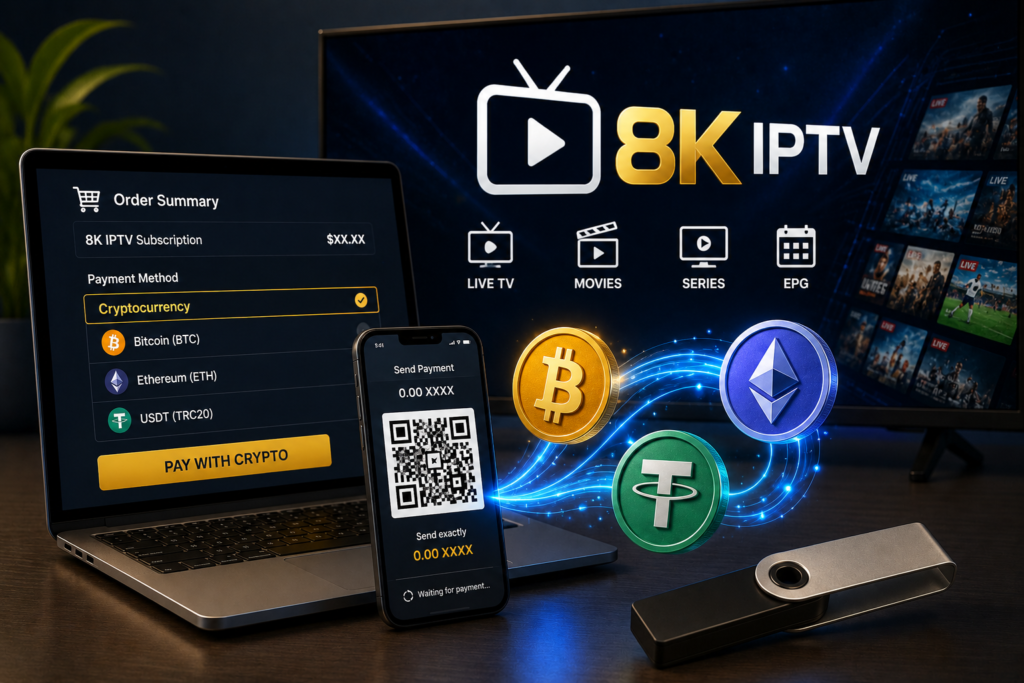
How to Buy 8K IPTV Subscription With Crypto Looking for an easy way to buy 8K IPTV subscription with crypto? Cryptocurrency can be a convenient payment option if you already use digital currencies and prefer an alternative to traditional card payments. In this guide, we explain how to choose your plan, select a cryptocurrency payment method, complete the transaction, and set up your IPTV service after payment. Before you buy 8K IPTV subscription with crypto, it is important to check the current subscription plans, supported payment methods, connection limits, and device compatibility. Payment options and prices can change, so always verify the information displayed on the official website before completing an order. Important: Always use IPTV services and streaming content that you are legally authorized to access. Cryptocurrency payments can be difficult or impossible to reverse, so carefully verify the payment address, cryptocurrency, network, and amount before confirming a transaction. Does 8K IPTV Accept Cryptocurrency? The current 8K IPTV payment information lists cryptocurrency among the available payment methods. The listed cryptocurrencies include Bitcoin (BTC), Ethereum (ETH), and USDT. If you want to buy 8K IPTV subscription with crypto, always check the payment options shown during the current checkout process because supported cryptocurrencies and payment methods can change over time. You can check the latest plans directly on the official 8K IPTV website . Which Cryptocurrencies Can You Use? The current 8K IPTV terms list the following cryptocurrency payment options: Bitcoin (BTC) Ethereum (ETH) USDT If you are new to cryptocurrency, you can learn more about Bitcoin , Ethereum , and USDT before making a payment. How to Buy 8K IPTV Subscription With Crypto Step by Step The process of buying an IPTV subscription with cryptocurrency is generally straightforward. You select your subscription, continue to checkout, choose an available cryptocurrency, and follow the payment instructions displayed by the official payment system. Step 1: Choose Your 8K IPTV Plan Start by visiting the official subscription page and review the available plans. Pay attention to the subscription duration and the number of connections included. If you are a new customer, a shorter subscription can be useful for testing compatibility with your device and IPTV player before selecting a longer plan. You can view the current subscription options here: 8K IPTV Subscription Plans . Step 2: Check Device Compatibility Before you buy 8K IPTV subscription with crypto, make sure your device can use a compatible IPTV player. Depending on the available application, IPTV services can be used on platforms such as Fire TV, Android TV, Smart TVs, smartphones, tablets and computers. Compatibility depends on the specific device and IPTV application. If you need help choosing a player, visit our IPTV player guide . Step 3: Check the Subscription Duration Choose the duration that fits your needs. Available plans can change, so review the current price and duration before continuing to payment. If you only want to test the service, you can also check whether a trial is currently available. The official website currently provides a 24-hour IPTV free trial for testing where available. Step 4: Check the Number of Connections Some IPTV subscriptions have a specific number of simultaneous connections. Before purchasing, check how many devices can use the account at the same time. Do not assume that one subscription automatically allows unlimited simultaneous connections. Always follow the connection limits shown on the plan you purchase. Step 5: Go to Checkout After selecting your plan, continue to the official checkout page. Before submitting your order, carefully check: Subscription duration Number of connections Total price Email address Selected payment method Make sure your email address is correct because subscription information and order notifications may be sent there. Buy an 8K IPTV subscription using cryptocurrency. Step 6: Select Cryptocurrency If cryptocurrency is available during checkout, select the crypto payment option. Depending on the payment system, you may see several supported cryptocurrencies. The current 8K IPTV payment information lists BTC, ETH and USDT. Do not send cryptocurrency until you have confirmed the exact currency requested by the checkout page. Step 7: Verify the Blockchain Network This is one of the most important steps when paying with cryptocurrency. Some cryptocurrencies, especially stablecoins such as USDT, are available on multiple blockchain networks. If the payment page specifies a particular network, use exactly that network. Do not guess which network is supported. Sending funds through an unsupported network can cause the payment to fail or become difficult to recover. Step 8: Verify the Wallet Address Before confirming your transaction, carefully compare the wallet address shown by the official checkout with the address displayed in your wallet. Check the first and last characters and, when possible, use the provided QR code instead of manually typing a long cryptocurrency address. Never use a wallet address received from an unofficial social media account, random message, or third party. Step 9: Send the Correct Amount Enter the exact amount requested by the payment page. Remember that blockchain transactions may also include network fees. The amount you send and the amount the merchant receives may therefore depend on the payment instructions and network used. If the checkout provides a payment timer, complete the transaction within the specified period. Step 10: Wait for Confirmation After sending the payment, wait for the transaction to be processed. Some cryptocurrency payments require blockchain confirmations before they can be recognized by a payment system. Do not send the payment again simply because your subscription credentials have not arrived immediately. First check your transaction status and order confirmation. What Happens After You Pay? After successful payment and activation, the 8K IPTV subscription information states that customers can receive login details such as M3U or Xtream Codes. These credentials can then be added to a compatible IPTV player. Keep your order confirmation and transaction information until the subscription has been successfully activated. How to Use Your 8K IPTV Credentials Once you receive your credentials, the exact setup depends on the IPTV player you choose. M3U Playlist If your subscription provides an
Buy 8K IPTV With PayPal : A Convenient Way to Pay for an IPTV Subscription
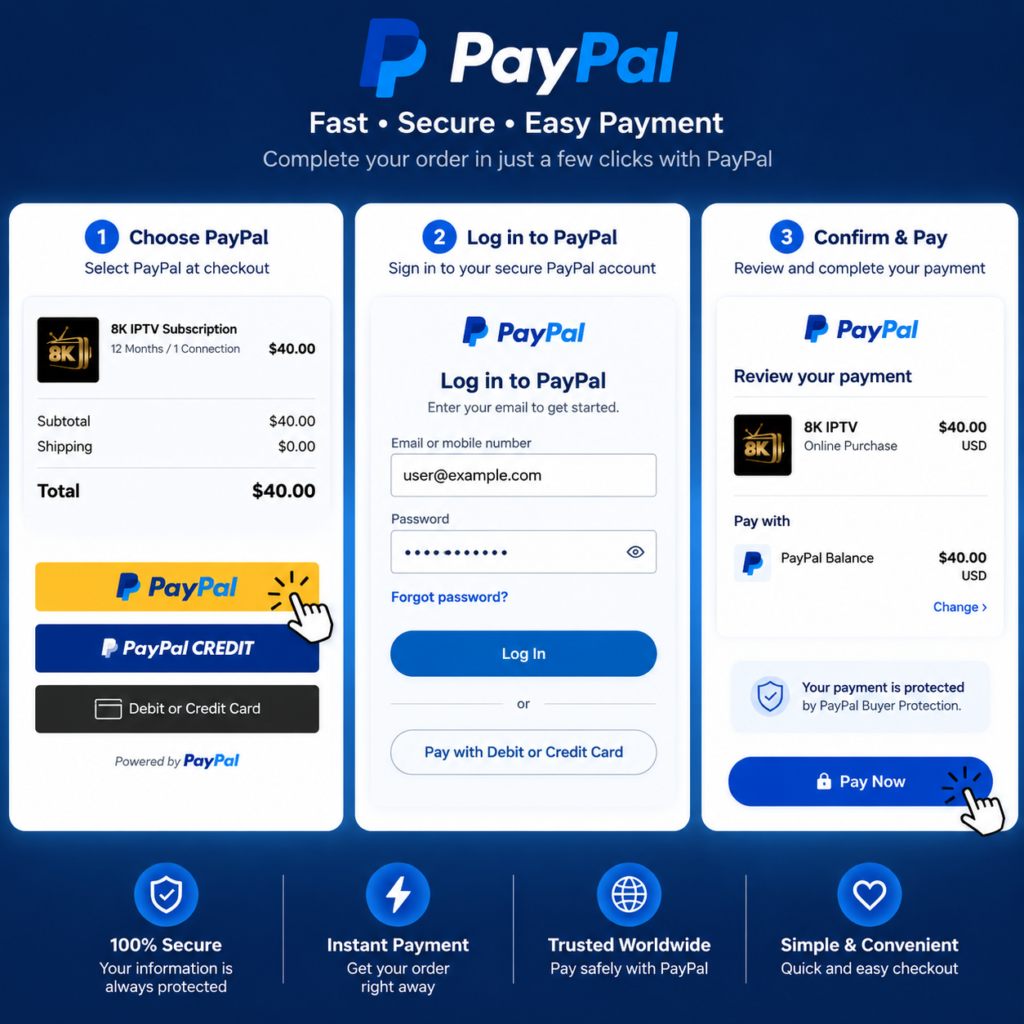
If you are searching for buy 8K IPTV with PayPal, choosing a convenient and familiar online payment method can make the purchasing process easier. PayPal is widely used for online transactions and allows customers to manage payments through their PayPal account without entering card information directly on every website. For customers interested in an 8K IPTV subscription, 8KIPTV.org offers PayPal as one of the available payment methods. Before purchasing any IPTV service, customers should always check what channels and content are legally available in their location and confirm that the provider has the appropriate distribution rights. Why Buy 8K IPTV With PayPal? One of the main reasons people search for 8K IPTV PayPal is convenience. PayPal provides a familiar checkout experience and allows users to complete online payments through their PayPal account. Instead of entering payment card information directly into a website, customers can use the payment method connected to their PayPal account. PayPal also provides transaction records, making it easier to keep track of purchases and payments. When choosing an IPTV provider, however, payment convenience should not be the only consideration. It is equally important to look at service transparency, customer support, compatibility, and whether the provider is authorized to distribute the content it offers. How to Buy 8K IPTV With PayPal The process is generally straightforward: 1. Visit the Official Website Start by visiting 8KIPTV.org and reviewing the available IPTV subscription options. 2. Choose Your Subscription Select the subscription period and package that best matches your requirements. Check the details carefully before continuing to checkout. 3. Select PayPal If PayPal is available for your order, select PayPal as your preferred payment method during checkout. 4. Complete the Payment You will be redirected to PayPal or presented with the appropriate PayPal checkout option. Sign in to your PayPal account and review the transaction details before confirming the payment. 5. Keep Your Transaction Information After completing the purchase, keep your PayPal transaction record and any confirmation email you receive. This can be useful if you need to contact customer support later. Is PayPal a Safe Payment Method for IPTV? PayPal is a well-known online payment platform with account security features and transaction records. However, using PayPal does not automatically guarantee that an IPTV provider itself is legitimate or that every service advertised by a provider is authorized. For this reason, customers should research an IPTV service before purchasing. Check the provider’s website, terms, refund policy, contact information, and the legality of the content being offered in your country. A secure payment method is only one part of making a responsible online purchase. What to Check Before Buying an 8K IPTV Subscription Before you buy 8K IPTV with PayPal, consider several important factors. Device compatibility: Make sure the service works with your device and the IPTV player you plan to use. Streaming quality: Check whether the provider actually offers the resolution and quality advertised for the channels or content you are authorized to access. Customer support: A reliable provider should have a clear way for customers to request assistance. Subscription terms: Read the subscription duration, renewal conditions, refund policy, and other terms before paying. Content rights: Make sure the provider is legally authorized to distribute the channels and content it offers in your region. PayPal for International IPTV Customers Another reason people search for 8K IPTV with PayPal is that PayPal can be convenient for customers who regularly make international online purchases. Depending on the customer’s country and PayPal account, payment options and currency conversion may vary. Before confirming a transaction, review the final amount shown by PayPal and make sure the recipient and purchase details are correct. Why Payment Transparency Matters When purchasing any digital service online, transparency is important. Customers should know exactly what they are purchasing, how long the subscription lasts, how much it costs, and how to contact the provider if they have questions. If you are comparing different providers for buy 8K IPTV with PayPal, don’t make your decision based only on price. Look at the overall service, available support, compatibility, terms, and—most importantly—whether the content is legally provided. Final Thoughts If you prefer PayPal for online purchases, 8KIPTV.org provides a convenient option for customers looking for an IPTV subscription with PayPal payment. PayPal can simplify the checkout process and provide a transaction record, while customers can also benefit from reviewing all subscription details before completing their purchase. Whether you search for buy 8K IPTV with PayPal, 8K IPTV PayPal, or 8K IPTV subscription PayPal, always take the time to verify the provider and understand exactly what you are purchasing. Visit 8KIPTV.org to review the available subscription and payment options.
Strong IPTV Reseller . Buy Panel IPTV 8K
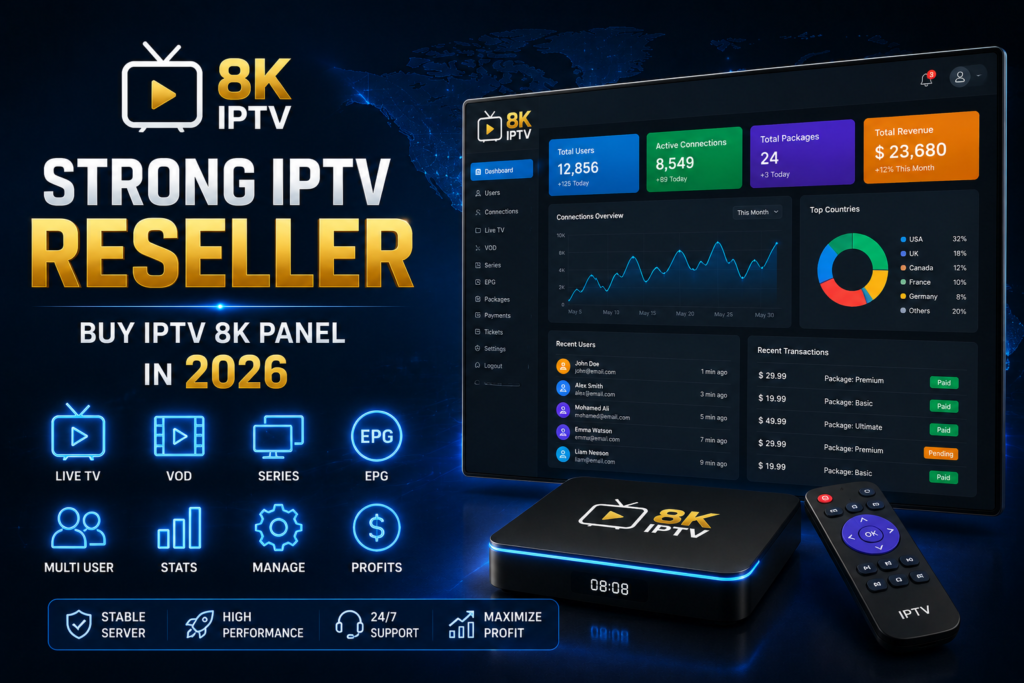
Strong IPTV Reseller – Buy IPTV 8K Panel in 2026 Looking for the best IPTV reseller panel in 2026? Strong IPTV Reseller offers premium 8K IPTV panels with ultra-fast servers, stable streaming, and powerful reseller tools for building your own IPTV business. Get IPTV Panel Here Whether you are starting a new IPTV business or scaling your existing IPTV service, Strong IPTV provides one of the best IPTV reseller solutions available today. Why Choose Strong IPTV Reseller? Strong IPTV Reseller is designed for users who want premium IPTV streaming, stable servers, fast activation, and a powerful reseller dashboard. ✔ Stable IPTV Servers ✔ HD / Full HD / 4K / 8K Streaming ✔ Fast IPTV Activation ✔ IPTV Credits System ✔ Premium Sports & Movies ✔ Worldwide IPTV Channels ✔ 24/7 IPTV Support Buy IPTV Reseller Panel Ready to start your IPTV reseller business? Get your premium IPTV panel today and start creating IPTV subscriptions instantly. Buy IPTV Panel Premium IPTV 8K Streaming Strong IPTV delivers one of the best IPTV streaming experiences in 2026 with anti-freeze technology, ultra-fast IPTV servers, and premium 8K quality channels. ✔ Live Sports Channels ✔ Movies & TV Series ✔ International Channels ✔ 4K & 8K IPTV ✔ Smooth Streaming Experience Compatible IPTV Devices Strong IPTV works perfectly on all major IPTV devices and IPTV applications. ✔ Fire TV Stick ✔ Android TV ✔ Smart TVs ✔ Roku TV ✔ MAG Box ✔ Apple TV ✔ IPTV Smarters ✔ TiviMate Start Your IPTV Business Today The IPTV industry continues to grow rapidly in 2026. Starting an IPTV reseller business can generate recurring income with low startup costs. ✔ High Demand Worldwide ✔ Monthly Recurring Revenue ✔ Easy Customer Management ✔ Flexible IPTV Credits ✔ Scalable IPTV Business Get Your IPTV Reseller Panel Join thousands of IPTV resellers using Strong IPTV premium reseller panels. Start Now FAQ What is an IPTV Reseller Panel? An IPTV reseller panel allows you to create and manage IPTV subscriptions using IPTV credits. Does Strong IPTV support 8K streaming? Yes. Strong IPTV supports HD, Full HD, 4K, and 8K streaming quality depending on channels and devices. Which devices are compatible? Strong IPTV supports Firestick, Smart TVs, Android TV, Apple TV, MAG Box, and IPTV apps. How fast is panel activation? Most IPTV reseller panels are activated instantly after payment confirmation.