
Best 8K IPTV in 2027: 9 Things to Compare Before You Choose

Lists that name “the best 8K IPTV” are usually paid ads. A better way is to know what to compare, then test the choices yourself. This guide gives nine points that separate a good IPTV service from a weak one, with a way to check each one. We include where Strong 8K IPTV stands so you can see how we measure ourselves. 1. Free trial access The best services let you test before paying. Check whether the trial gives access to everything or only a handful of channels. Strong 8K IPTV offers a full 24-hour free trial. One day covers morning, evening and a live sports hour. 2. Channel lineup Do not trust headline numbers. Look at the actual list. Search for the channels and countries that matter to you. The public channel list shows 50,000+ channels and titles across the USA, UK, Europe, Africa and the Arab world. 3. Stability at busy hours Any server looks good at 10 in the morning. Test on a weekend evening or during a live match. If the stream holds then, the service is built well. 4. Picture quality you can use HD and 4K matter more than 8K for everyday viewing, since very little content exists in true 8K. A service that gives stable HD and 4K is better than one that advertises 8K and buffers. 5. Device and app support Check that it works on your TV, stick, phone and computer. The apps page and installation tutorial show what is supported and how to set it up. Easy install is a sign the provider cares about customers. 6. Support quality Send a question before you pay. Measure the reply time and how clear it is. Support should be easy to reach on WhatsApp or email, which you can do from the contact page. 7. Clear pricing and plans Look for visible durations, visible connection counts and a normal checkout. Compare the 1 month, 3 month, 6 month and 12 month options and check what changes between them. Very low prices with promises of lifetime access are a warning sign. 8. Payment safety Pay only through the checkout on the provider’s own website. Do not send money to private chat accounts. Keep your order confirmation and the support contact. 9. Real identity and history Popular IPTV names get copied. You will find many look-alike domains for the same brand. The official site for Strong 8K IPTV is 8kiptv.org. When you are unsure, confirm with support before you pay. A simple scoring sheet Give each point from 0 to 2 for each service you test. 0 means it failed or was unclear 1 means acceptable 2 means clearly good Add the scores. The service with the best total on your own device is your best IPTV, whatever a list says. What we do not claim No honest provider can promise zero buffering, because your internet and device matter too. We do not claim to be the only good choice. We say: test us on your own setup, compare us with others, and keep the one that works. Test it yourself Start the free trial Install a player with the tutorial Run the checks above Compare with any other service you are considering If you want to sell instead of watch The reseller panel is built for that, with credits and a simple dashboard. Compare it the same way: test, check support and ask questions before you buy credits. Final word The best 8K IPTV in 2027 is the one that works on your TV, at your busy hour, with support that answers. Use this checklist, use the trial, and decide with your own eyes. Frequently asked questions Is 8K worth paying for? Very little content is in true 8K. For most people, a stable HD and 4K service matters more. Treat 8K as a top tier that may grow over time. Are reviews reliable? Be careful. Many review pages are written by the sellers. Your own test is more reliable than any list. How many services should I compare? Two or three is enough. Use the same scoring sheet and the same device for each. What if I already have a provider? Test a trial from another one and compare. If yours still wins, you have lost nothing. Will prices change? They can. Check the current plan pages before you buy. Start from the plan list. Red flags again, in one list No trial No visible channel list Support only by form Very low prices with “lifetime” promises Payment requested in private messages How to run a fair side-by-side test Comparing two or three services fairly takes planning. Use the same device, the same connection and the same time of day for each trial. Test the same five channels in each. Watch the same live match if possible, because that is the heaviest load. Fill in the same scoring sheet for each. Do not test one service on the TV and another on your phone, because the results are not comparable. What the score does not show A score sheet cannot show how a company behaves when something goes wrong in month five. Ask about refunds and how problems are handled before you pay. Read the terms page on the provider’s site. Choose a provider whose terms are clear and written in plain language, and keep a copy of your order confirmation. How we think about it ourselves We try to make the service easy to check: a public channel list, public plans, an installation tutorial with screenshots, and a free trial. We cannot promise perfection, and we do not hide that your own network matters. What we can do is give you all the information and a fair test, then let you decide. How to choose between two services that both pass Pick the one with the faster support reply Pick the one with the clearer plans and pricing Pick the one that works better on your main TV at the
IPTV Compatible Devices: Smart TV, Fire Stick, Android, iPhone and PC
One of the first questions about IPTV is simple: will it work on my device? In most cases the answer is yes, because IPTV only needs a compatible player app and an internet connection. This page lists the main device types, how each one works, and where to start. How compatibility works IPTV is not tied to a specific brand. Your subscription gives you a login. A player app on your device uses that login to load channels. So a device is compatible when it can run a player that supports your login type. The IPTV apps page lists options by device. Amazon Fire TV and Fire Stick Very common and simple. You install Downloader, allow unknown sources, enter the player code and install. Our installation tutorial covers every step with screenshots. Models with 4K support are the best choice for large channel lists. Android TV, Google TV and Android boxes These work the same way as Fire TV, because they are Android-based. You can install a player from the app store or with Downloader. Boxes with Ethernet ports give the most stable results. The 8K VIP Player fits these devices. Samsung Smart TVs Many Samsung TVs let you install a compatible IPTV player from the TV app store. Check that your model year supports it, because older models have fewer apps. If the TV menu feels slow, a stick or box on the HDMI port often runs better. LG Smart TVs LG TVs run webOS and also have IPTV players in their store. As with Samsung, the available apps depend on the model year. A Fire Stick or Android box is an easy backup if no good player is available. Android phones and tablets Install a compatible player from the store, add your login, and watch. Phones are handy for testing the free trial before you set up the main TV. iPhone and iPad Apple devices work with IPTV players from the App Store. Pick a player that supports username and password login or an Xtream-style account, then add your details. Apple TV Apple TV supports several IPTV players and is fast. It costs more than a stick, but the experience is smooth. Windows and Mac You can use a desktop IPTV player, or a general media player that accepts a playlist. This works well for a desk setup or for a laptop connected to a TV by HDMI. MAG boxes MAG boxes are dedicated IPTV set-top boxes. If you own one, ask support for the correct setup details for your model before you start. Quick table Device Setup route Ease Fire TV / Fire Stick Downloader and player code Easy Android TV / Google TV Store or Downloader Easy Samsung / LG Smart TV TV app store Medium, varies by model Android phone / tablet Play Store player Easy iPhone / iPad / Apple TV App Store player Easy Windows / Mac Desktop player Easy What makes a device a bad choice Very old Smart TVs with no app updates Cheap sticks with low memory Devices on a weak Wi-Fi signal with no cable option How to check yours The fastest check is the trial. Get the 24-hour free trial, install a player on the device, and see whether channels load smoothly. If not, tell support the exact model. We can usually suggest a working player, or a low-cost device that will do the job. See also our guide to the best devices for IPTV streaming. Connection counts Compatibility is about the device. The number of devices streaming at once depends on your plan. Check the plan pages for the connection options. In short, if your device can run a compatible player and connect to the internet, it can run IPTV. Frequently asked questions Can I use IPTV on more than one device? You can install on many devices. How many stream at once depends on your plan connections. Do I need a VPN? It is not required to use the service. Some people use one for privacy. It can slow the stream, so test with and without. Can I cast to the TV? Some players support casting from a phone. A direct app on the TV or stick is usually more stable. What about gaming consoles? Some consoles can run media apps, but support for IPTV players varies. A stick or box is the safer route. Is my old tablet fine? If it runs a current player and has a stable connection, yes. Older tablets may struggle with large channel lists. Where to start Pick the device you use most. Follow the tutorial, test with the free trial, and ask support if your device is not listed. Choosing your first device if you have none If you do not own a compatible device yet, the easiest and cheapest start is a 4K Fire TV Stick. It plugs into any HDMI port and the setup is covered step by step in the tutorial. If you want more power and a cable port, choose an Android TV box with Ethernet. Apple fans can pick an Apple TV. Whatever you choose, test it with the free trial before you decide to keep it. Compatibility and picture quality Compatibility means the app runs. Picture quality depends on more than that. For 4K you need a 4K TV, a device that decodes 4K, a fast enough connection and a stream that is offered in 4K. If one piece is missing, you will see HD instead. That is normal and does not mean something is broken. Check each piece in turn if you expect more. Several rooms, several devices Many households use a Fire Stick in the living room, a second one in the bedroom and a phone for travel. This works as long as the number of streams at the same moment stays within your plan. If you often watch in three places together, choose a plan with three connections. Troubleshooting a device that is not listed Find out if it
Strong 8K Test: How to Check Stream Quality During Your Trial
If you want to run a Strong 8K IPTV test, the goal is to find out if the stream is stable and sharp on your own screen and connection. Anyone can show a clean demo. What matters is what you see in your living room on a busy evening. This guide shows how to test properly during your 24-hour free trial. Step 1: Test your internet first Before you blame or praise a server, measure your own line. Run a speed test on the same device or network you will use. As a guide, an HD stream needs about 10 Mbps and a 4K stream needs 25 Mbps or more. If you share the connection with other devices, leave extra room. Write down the result so you can compare later. Step 2: Use the right device and the right connection Test on the TV you will actually use. If the device has an Ethernet port, use a cable for the test. Wi-Fi is fine, but a cable removes one variable. Install the player by following the installation tutorial, then sign in with the trial details. Step 3: Channel start time Switch between ten channels. Count how long each takes to show picture. A healthy stream starts in a few seconds. If many channels take more than 10 seconds, note the time of day and try again later. Step 4: Buffering test Watch one channel for 15 minutes without touching the remote. Count the freezes. One short pause in 15 minutes can be your network. Several pauses suggest a problem you should report. Try the same on a second channel in a different category, like sports and then movies. Step 5: Picture quality Pick an HD channel and a 4K channel, if your TV supports 4K. Look at three things: Sharpness of text and faces Smoothness of fast movement such as football Dark scenes, where weak streams show blocks Step 6: Live sports at peak time This is the hardest test. Watch a live match or event in the evening. Servers are busiest then. If the stream holds through the match, it is a good sign for the whole service. Step 7: Movies and skipping Open a movie, skip forward ten minutes and back. Pause and resume. The stream should respond quickly. Long waits on every skip can point to your device or network. Step 8: Sound and subtitles Check that sound stays in sync, and that audio tracks and subtitles can be switched in the player. This is often a player setting rather than a server issue. Step 9: Two screens at once If you plan to buy more than one connection, try two devices at the same time. Both should play without trouble on a plan with enough connections. Step 10: Contact support Send a real question. For example, ask how to switch the player language or where to find a channel. Note how long the reply takes and whether it solved the question. Use the contact page. How to score the test Give each step a simple score, pass or fail, and add a note. Check Pass looks like Start time Most channels start in a few seconds Buffering No more than a rare short pause Sports at peak Stable through the match Picture Sharp, smooth, clean dark scenes Support A clear answer in a reasonable time If something fails Restart the player, then the device Restart the router Switch from Wi-Fi to a cable, or move closer to the router Test another channel and another device Send support your notes: time, channel, device and what happened Our guide to why IPTV keeps buffering covers more fixes you can try yourself. Decide with facts When the 24 hours end, look at your notes. If most checks passed, choose a plan: 1 month, 3 months, 6 months or 12 months. If you need more time to decide, write to support. A short, careful test saves you money and frustration, and it is the best way to see what Strong 8K IPTV does on your own setup. Frequently asked questions How many freezes are normal? Streaming over the internet is never perfectly flat. A rare short pause can come from your network. Repeated freezes in a few minutes should be reported, with the time and channel. Why does quality change during the day? Network load changes through the day, both at your home and across the internet. That is why testing morning and evening gives a fairer result. Does the player affect the test? Yes. An old or heavy player can be slow even when the stream is fine. Try the recommended player from the tutorial before drawing conclusions. Should I test with a VPN on? Test without a VPN first. A VPN adds delay and can slow the stream. If you need one for privacy, test again with it on and compare. What speed shows in my player? Some players show bitrate or buffer information. Use it only as a guide, together with what you see on screen. Fast fixes if the test looks bad Switch to a cable Close other apps and downloads Move the router or the device Reboot everything and test again Try a second device to see if the problem follows the stream or the device Still not right? Send your notes to support from the contact page. Testing on different screen sizes Quality problems show up differently on different screens. On a phone, even a weak stream can look fine. On a 55 inch TV or larger, blocky motion and soft detail are easy to see. Test on the biggest screen you will use. If you also plan to watch on a phone during travel, run a short test there on mobile data and Wi-Fi. Testing audio Switch between a stereo channel and one with surround sound if your setup supports it. Check that the volume is similar between channels and that voices stay in sync with lips. If the sound drifts, restart
8K IPTV Service: Channels, Quality and Support Explained

An 8K IPTV service sounds simple, but the name hides several different things: the channels, the stream quality, the apps, and the people who help you when it breaks. This page walks through each part of the Strong 8K IPTV service in plain language, so you know what to expect before you try it. The channels The service carries 50,000+ live channels and on-demand titles. They are grouped by country and type: sports, movies, series, news, kids, music and documentaries. You will find channels from the USA, UK, Europe, Africa and the Arab world, which is why the service suits families who watch in more than one language. You can read the whole lineup on the public channel list and use its search to look for a specific channel before you sign up. Live sports Sports are the most demanding part of any IPTV service because everyone watches at the same time. The lineup covers football and many other sports. If sports are your main reason to subscribe, test during a live match with the free trial. That test tells you more than any promise. Movies and series on demand Besides live TV there is a library of movies and series. You can pause, skip and resume. Titles are sorted by category and year, and most players offer search. Quality depends on the title, with newer releases often available in higher quality. Picture quality: HD, 4K and 8K The service supports HD, 4K and 8K streams. Here is what that means in practice. HD: the standard for most channels and fine for most screens 4K: sharper detail on a 4K TV, available on selected channels and titles 8K: the top tier. Very little content exists in true 8K today, so treat it as headroom rather than a daily experience What you see depends on the source, your TV, your device and your internet speed. A stable HD or 4K stream is better than an 8K stream that buffers. Servers and stability The server is built to keep streams stable at busy hours. No provider can promise zero problems, because your own network matters too. What a good service does is keep the server healthy and fix issues fast. If a channel stops, tell support and it can be checked. Devices and apps The service works on Fire TV Stick, Android TV and Google TV, Android phones and tablets, Samsung and LG Smart TVs, Apple devices, Windows and Mac, through compatible players. The easiest start is the 8K VIP Player on Android-based devices, and the apps page lists other options. The installation tutorial shows the steps. Support Support is part of the service. You can reach a person through WhatsApp or email from the contact page. Typical reasons to write: login problems, an app that will not install, a missing channel, or a plan change. Give your device model and what you see on screen, and you will usually get an answer faster. Details are on the support page. Plans and connections Plans run from one month to twelve months with one to three connections. Everything in the service is the same across plans. Only the length and the number of simultaneous screens change. Who it is for Households that want a lot of channels in several languages Sports fans who watch live events at busy hours People who like movies and series on demand Anyone who wants a trial first and a simple monthly or yearly plan after Who it may not suit People with very slow internet, below about 8 to 10 Mbps for a single stream Anyone who expects every channel to be in 8K, because that content is rare Users who want a legal replacement for every local channel licence in their country. Check what is allowed where you live How to start Start the 24-hour free trial Install a player using the tutorial Test your channels, sports and devices Pick a plan if you are happy A note on resellers People who want to sell the service can use the reseller panel. It is a separate product with its own credits and is not needed to watch. The simplest way to judge any IPTV service is to use it. The trial is free, so you can decide with real experience instead of guesses. Frequently asked questions Are all 50,000 channels live TV? The number includes live channels and on-demand titles. Check the channel list to see what is live and what is a library. Does the service work abroad? It works wherever you have internet and a compatible device. Speeds and rules differ by country, so make sure you follow the laws where you live. Can I watch in several languages? Yes, there are channels in many languages, and many players let you switch audio and subtitles on supported titles. What if a channel stops working? Tell support the channel name and the time. Channels can be replaced or moved, and support can check the server side. What is the difference between a trial and a plan? The trial is time limited so you can test. A plan gives access for the length you choose. See the plan pages for options. How to get the most from the service Add favourite channels in your player so you skip the long list Use a cable on the main TV Keep the player updated Write to support early instead of waiting Using the channel list well The public channel list is a good place to start before you subscribe. Search for the exact channel names you want, check the country filter, and look at which sports are covered. Then test those same channels during the trial. If a channel you need is missing from the list, ask support. They can tell you if it exists under another name. What support can and cannot do Support can check your account, reset your login, suggest a player for your device and look into a channel that stopped. Support cannot
Best Devices for IPTV Streaming in 2027: Fire Stick, Android Box and More
The device you pick affects IPTV more than most people think. A slow stick freezes, an old box cannot play 4K, and some Smart TVs run the player poorly. This guide compares the main options so you can choose the best device for IPTV streaming without wasting money. What matters in an IPTV device Processor and memory: IPTV players load large channel lists. More memory means smoother menus 4K support: needed for 4K channels, and check that your TV also supports it Network: dual-band Wi-Fi or an Ethernet port makes a big difference App support: the device must run the player you want Updates: a device that still gets updates stays more reliable Amazon Fire TV Stick 4K The Fire TV Stick 4K and 4K Max are the most popular choice. They are cheap, small, and run Android-based apps well. The 4K models handle 4K streams and have enough memory for large channel lists. The basic Lite stick is weaker and has less storage, so avoid it if you plan to use heavy apps. Fire Stick installs are covered step by step in our installation tutorial. Android TV and Google TV boxes Boxes such as the Nvidia Shield and several Chromecast with Google TV models are strong choices. They have good hardware and easy app installs. A box with an Ethernet port is the best option for the main living room TV, because a cable removes most Wi-Fi problems. Cheap no-name Android boxes can work, but quality varies, and many ship with old software. Apple TV Apple TV is very fast and stable, and it has a good selection of IPTV players on the App Store. It costs more than a stick. It is a good option if you already use Apple devices and want a smooth, quiet experience. Samsung and LG Smart TVs You can install a compatible IPTV player directly on many Samsung and LG TVs. This saves buying a device. The trade-off is that TV processors are often slower than a dedicated box, and the apps available depend on the TV model and year. If the TV menu feels slow, a Fire Stick or Android box usually runs the player better. Phones, tablets and computers Android phones, iPhones, iPads, Windows and Mac all work with compatible players. They are good for watching away from home or for testing the free trial quickly before you set up the TV. Quick comparison Device Best for 4K Cable port Fire TV Stick 4K / 4K Max Budget, easy setup Yes With adapter Android TV / Google TV box Power users, main TV Yes Often yes Apple TV Smooth, quiet, Apple users Yes Yes (some models) Smart TV (Samsung, LG) No extra device Depends on TV Yes Phone / tablet / PC Travel, testing Depends No Our recommendation Lowest cost: Fire TV Stick 4K Best for the main TV: an Android TV box with Ethernet Easiest if you are in the Apple world: Apple TV No purchase: your Smart TV, if it runs the player smoothly Tips that matter more than the brand Use Ethernet if you can. A cable solves most buffering Keep your router near the TV and on the 5 GHz band Restart the device now and then Clear the app cache if menus become slow Keep the player and the system updated How to check before buying Use our free trial on a device you already own first. If it plays well, you may not need to buy anything. If the picture stutters on your old device while other streams are fine, upgrading the device is a good use of money. For app options per device, see the IPTV apps page. Pick the device that matches your TV, your network and your budget, and test it with the trial before you commit to a plan. Frequently asked questions Do I need an 8K TV to use an 8K IPTV service? No. A normal HD or 4K TV works. The service offers a top quality tier, but you can enjoy HD and 4K on regular screens. Is a Smart TV enough? Often yes. If the TV menu and the player run smoothly, you do not need another device. If it feels slow, add a stick or box. How much memory do I need? For large channel lists, more is better. Devices with at least 2 GB of memory handle most players comfortably. Very small devices can be slow with big lists. Does the device change the picture quality? It can. An old device may not decode 4K properly, which causes stutter. The stream itself may be fine. Is Wi-Fi 6 important? It helps in busy homes, but a cable still beats any Wi-Fi for stability. If your device has no port, use a USB or adapter option. Buying checklist 4K support if your TV is 4K Ethernet port or adapter At least 2 GB memory Recent software updates Support for the player you want, see the apps page Not sure about a device you already own? Ask support from the contact page and tell them the exact model. Setup tips for each type of device Fire Stick Put the stick on the HDMI extender that comes in the box. This keeps it away from the back of the TV, where heat and signal interference are worst. Use the original power adapter, not the TV’s USB port, which can be too weak and cause restarts. Android TV box Connect the Ethernet cable, then turn Wi-Fi off to be sure the box uses the cable. Check in the settings that the box has the latest update. Disable animations in developer options if the menu feels slow. Smart TV Switch the TV to a wired connection if it has a port. Turn off power-saving features that dim or close apps. Update the TV firmware, because player apps get patches that old firmware can block. How much will you spend? You can start for the price of a stick, or for
8K App Code: How to Use Downloader to Install the Player on Fire Stick
Many people search for an “8K app code” because the easiest way to install the player on a Fire Stick or Android TV is a short code typed into the Downloader app. This guide explains what that code does, how the steps go, and what to do when something fails. The current code and the screenshots are on our installation tutorial, and we keep it updated there. What is a Downloader code? Downloader is a free app for Fire TV and Android TV. Typing a web address with a remote is slow. So many apps publish a short numeric code. When you type that code in Downloader, it opens the right download page for you. For the 8K player, the code takes you to the installer file. You press download, press install, and you are done. Why use a code instead of a link It is faster with a TV remote You make fewer typing mistakes The code can be updated without you changing anything on your side What you need A Fire Stick, Fire TV, Android TV box or Google TV An internet connection The Downloader app Your login details from a subscription or the free trial Step by step on Fire Stick Step 1: Install Downloader Use the search on your Fire Stick home screen, type “Downloader”, and install the app. Open it once to let it set up. Step 2: Allow unknown sources Go to the Fire Stick settings, then My Fire TV, then Developer options. Find the option for installing unknown apps and allow it for Downloader. On newer Fire OS versions, the setting is listed under each app. Allow only Downloader. Step 3: Enter the code Open Downloader, select the address box, and type the code for the player. On our tutorial page the code listed for 8K Player VIP is 2057169. Press Go. Downloader loads the page and starts the file download. Step 4: Install When the download finishes, press Install, then Done or Open. After this you can delete the installer file, because Downloader will ask whether to remove it. This saves space on small devices. Step 5: Sign in Open the player and enter your username and password. The first load of the channel list can take a minute. Android TV and Google TV The steps are almost the same. Install Downloader from the Play Store, allow unknown sources for it in the Security settings, enter the code, and install. Some boxes place the option under Settings, Device Preferences, Security and restrictions. If the code does not work Check that you typed the digits correctly. One wrong digit loads a different page Make sure there is no space before or after the code Check the tutorial page for the latest code, because codes can change Restart Downloader and try again If it still fails, write to support and we will send the current link If the installer will not run The most common reason is the unknown-sources setting. Go back to Step 2 and confirm it is on for Downloader. A second reason is low storage. Remove an unused app and try again. Fire Stick Lite and older Fire TV models have small storage. Staying safe Only use the code given on our tutorial. Codes posted on random forums can lead to files that are not from us. If a page asks for payment details inside Downloader, close it. The player install never needs payment information. After the install When the app is running, you can test the service and check quality. See our guide to the 8K VIP Player for what it does and how to sign in. If you prefer a different player, the apps page lists compatible options. The short version: install Downloader, allow it, type the code, install the player, sign in. Five steps and you are watching. Frequently asked questions Is the 8K app code always the same? Not always. Codes can be updated by the app publisher. That is why we keep the current code listed on the installation tutorial rather than only in articles. If a code from an article fails, check the tutorial. Do I need to pay to use Downloader? No. Downloader is a free app. The player install never needs a payment inside Downloader. Why does my Fire Stick say it cannot install the app? The two usual reasons are the unknown-sources permission and low storage. Check the permission for Downloader and free some space. Can I type a link instead? Yes, if you have a direct link from our support. A code is only a shortcut for a web address. What do I do after installing? Open the player, choose Edit on the playlist, add your username and password, save, reload and press Connect. The same page shows each step. Checklist before you contact support The code is typed exactly as on the tutorial page Downloader has permission to install unknown apps The device has free storage The internet connection is working in other apps You tried restarting Downloader and the device If all five are fine and it still fails, contact support with your device model and a photo of the error. Understanding why Fire Stick blocks the install Fire TV is built to install apps from the Amazon store. When you ask it to install a file from another source, it asks for permission first. This is a safety feature. It is not an error. You allow it only for Downloader, and you can turn the permission off again after the install if you prefer. Doing this once is enough for the 8K player, and the same permission lets you update the app later. Keeping your Fire Stick fast Small streaming sticks have limited storage and memory. After you install the player, remove the installer file when Downloader offers to delete it. Uninstall apps you no longer use. Clear the cache of heavy apps from the Fire TV settings from time to time. A clean stick keeps the
8K VIP Player: What It Is and How to Install It
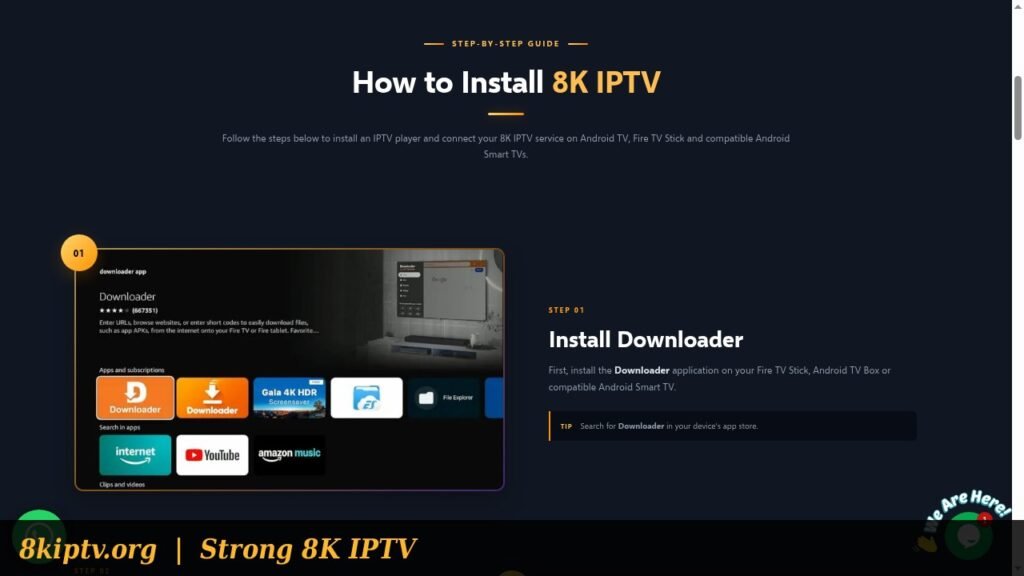
8K VIP Player is the app used with the Strong 8K IPTV server. If you searched for “8K VIP Player”, “8K player” or “8K app”, this page explains what it is, who needs it, and how to get it running on your device. The full step-by-step with screenshots is in our installation tutorial. What is 8K VIP Player? An IPTV server does not show video by itself. You need a player app to log in and play the channels. 8K VIP Player is the app that goes with the Strong 8K server. You enter your subscription details in it, and it loads the channels, the movies and the series. It is meant to be simple, so that you do not have to build a playlist by hand. If you prefer another player you already know, the service also works with other common IPTV players. See the IPTV apps page for the list. Who should use it? New customers who want the easiest setup for the Strong 8K server People who tried other apps and had trouble with playlist settings Anyone moving to a new TV, Fire Stick or Android box who wants a quick reinstall Which devices does it fit? The app is used mainly on Android-based devices: Android TV boxes, Google TV, Fire TV and Fire Stick, and Android phones and tablets. These are the devices covered step by step in the tutorial. For other devices such as Samsung and LG Smart TVs, Apple devices and computers, use a compatible IPTV player from the apps page and sign in with the same subscription. Before you install Have an active subscription or the 24-hour free trial Keep your login details from the email or message we sent you Connect your device to the internet On Fire Stick, allow installs from outside the store, as shown in the tutorial How to install, in short On Fire Stick and many Android TV boxes, the usual route is the Downloader app. Install the Downloader app from your device store Allow Downloader to install apps from unknown sources in the device settings Open Downloader and enter the 8K Player VIP code from the tutorial (listed there as 2057169 at the time of writing) Wait for the file to download and press Install Open the app and sign in with your subscription details The tutorial page has a screenshot for each of these steps, so you can match what you see on your TV. Signing in Open the app, choose the option to add your account, and type the username and password from your subscription. Check upper and lower case, because the login is case sensitive. If the app asks for an Xtream or playlist option, follow the screens shown in the tutorial. After you save, your channels load in a minute or two the first time. Tips for a smooth first start Restart the device after install, then open the app Wait for the first channel list to finish loading before judging speed If you see an empty list, check the login for typing mistakes Keep the app updated through the same source you installed it from Common problems The app will not install Almost always the unknown-sources setting is off. Turn it on for Downloader only, then try again. Login does not work Copy the details again from your message, remove spaces at the ends, and make sure you are using the latest login. If it still fails, contact support and we will check the account. Channels load slowly Restart the router, move the device closer, or use a cable. A weak connection is the most common cause. Read our guide on why IPTV keeps buffering for more fixes. Is it safe? Only download apps from the link or code given on our installation tutorial, and avoid random copies on other sites. The app is the official one for this server. If you are unsure about a file you found elsewhere, ask support first. Next step Get your login with the free trial, open the installation tutorial, and follow the steps for your device. If you get stuck at any point, write to support and we will walk you through it. Frequently asked questions Is 8K VIP Player the same as the subscription? No. The subscription is your access to the Strong 8K server. The app is what you use to watch it. You need both: the login from a subscription or trial, and a player to use it. Do I have to use this app? No. It is the simplest route for the Strong 8K server, but other compatible players also work. If you already like another player, you can use it with the same login. Why does the app need a code and not an app store link? On Fire TV and many Android boxes it is installed from outside the store. The Downloader code makes that quick with a TV remote. The code is listed on the tutorial page. Will it work on my Samsung or LG TV? The Downloader route is for Android-based devices. For Samsung and LG, check which compatible player your TV store offers on the apps page, or plug a Fire Stick into the TV. What if I change my login later? Open the playlist in the app, choose Edit, update the username and password, save and reload. The tutorial shows this with screenshots. Keeping the app healthy Restart the device every week or two Clear the app cache if menus feel slow Make sure the device has free storage Reinstall using the tutorial if the app stops opening If anything on this page does not match what you see on your screen, write to support from the contact page with a photo of the screen. Setting up your favourites and layout After the first sign-in, spend five minutes on the setup. Mark the channels you watch most as favourites so you do not scroll through thousands of names each time. If the app offers
IPTV Free Trial 24h: How to Test a Service Properly Before You Pay

A 24-hour IPTV free trial is the safest way to judge a service. But most people waste it. They open three channels, see a picture, and decide. A stream that looks fine at 3 in the afternoon can fall apart at 9 on a football night. This guide gives you a simple plan to use the full 24 hours. Why a 24-hour trial is the right length One day covers the full cycle of a normal week of viewing: a quiet daytime, a busy evening, and a live sports hour. Shorter trials of one or two hours often miss the evening peak, which is when weak servers struggle. You can get the free trial from this page and use it from the moment you receive the login. Before you start the trial Pick the device you will actually use every day, not a spare one Check that the device has the latest system update Place it close to the router, or use a network cable Install the player first. The installation tutorial shows every step The 8-point test plan 1. Start time Open ten different channels one after the other. Count how long each takes to show picture. A good server starts most channels within a few seconds. Note any that hang. 2. Your main channels Check the specific channels you want to pay for. Do not assume they are there. Use the search inside the app and also scan the channel list. 3. Live sports at a busy hour If you watch football or other live sports, test during a live match. This is the hardest test for any server and the most honest one. Watch for freezing at key moments. 4. Movies and series Open a few titles on demand. Skip forward and back. Check that the picture and sound stay in sync and that skipping does not break the stream. 5. Picture quality Compare an HD channel and a 4K channel on your TV. Look at sharpness, motion on sports, and dark scenes. Remember that your TV and internet limit what you can see. 6. Evening versus morning Test once in the morning and once in the evening. If it works well at both, the server can handle load. 7. Multiple devices If your plan will have more than one connection, try two devices at the same time, such as the TV and a phone, to see that both play. 8. Support Ask one real question during the trial. See how fast and how clearly you get an answer. Reach support from the contact page. What to write down Keep short notes on your phone: the time, the channel, and the problem. When you decide, you will have facts instead of a feeling. If something fails, send the notes to support. A good provider will look at them and fix what they can. Signs the service passed Channels start quickly and stay stable Sports are watchable in the evening The channels you need are on the list Support answered within a reasonable time You did not need tricks or restarts to keep it running Signs to move on Frequent freezing even on a strong connection Missing channels you were promised No reply from support during the trial Pressure to pay before the test finished What if the problem is your network? Before you blame the service, rule out your side. Restart the router and the device. Run a speed test and check you have enough speed for the quality you are watching. Try a cable. If other apps also buffer, the cause is your internet, not the server. After the trial If you liked it, choose the plan that fits: 1 month, 3 months, 6 months or 12 months. You can also read the full breakdown in our guide to the Strong 8K IPTV plans. The trial is free, so use it properly. A little structure turns 24 hours into a real answer. Frequently asked questions about the 24h trial Do I need a credit card? The trial on this site is requested from the free trial page and is designed so you can test before choosing a plan. Read the details on that page for the current steps. When does the 24 hours start? The clock starts when your trial login is activated, not when you install the app. So prepare the device first, then activate the trial when you are ready to watch. That way you do not waste hours on setup. Can I test on more than one device? Usually you can sign in on a second device, but streaming on both at the same time depends on the trial connection limit. If you want to test two screens, ask support before you start. What if I run out of time? If the day was disrupted, for example by an internet outage, write to support and explain. A fair provider will understand a real problem on your side. What if the trial works but the paid plan does not? The trial and the paid plans use the same service. If something differs, contact support right away with the details and they will check. Best times to test Plan three short sessions. One in the morning to check the basics. One in the late afternoon to check ordinary load. One in the evening, ideally with a live match, to see how it holds when many people are watching. Take notes in each session. Trial mistakes to avoid Using the whole trial on one channel Testing only on your phone when you plan to watch on a TV Judging picture quality on a weak Wi-Fi spot Forgetting to test support Starting the trial late at night and sleeping through half of it If you are ready to begin, open the free trial page and follow the steps. If you need help with the app first, use the installation tutorial. What a good trial tells you about the company A trial shows more than stream quality.
8K IPTV Subscription: What You Get, Plans and How to Order
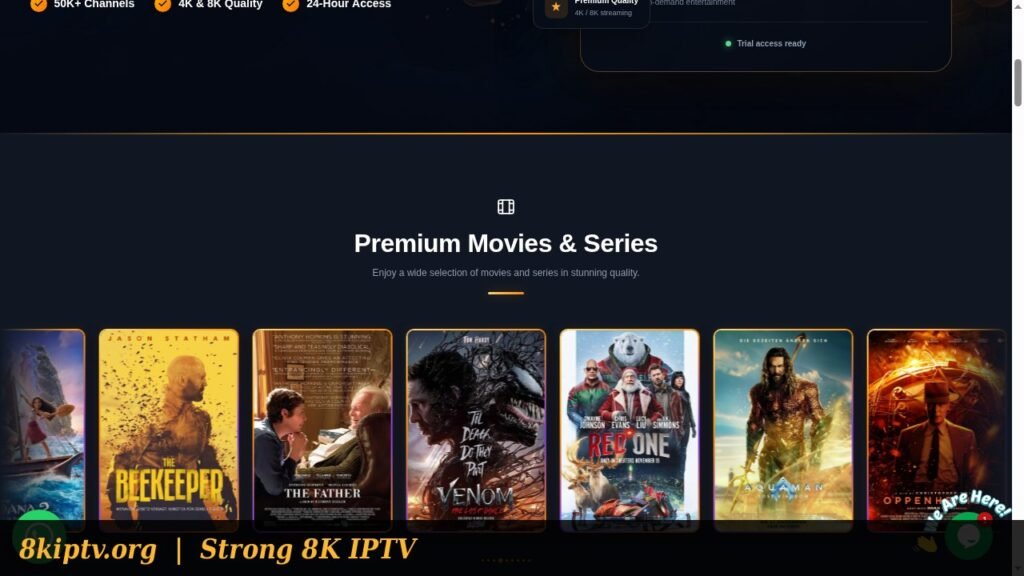
If you are about to buy an 8K IPTV subscription, it helps to know exactly what the money covers. This page explains what is inside a subscription, how the plans differ, how many screens you can use, and what happens after you order. No guessing, no jargon. What an 8K IPTV subscription includes A subscription gives you access to a server for a set time. Inside you will find live TV channels, sports, movies and series on demand, and a program guide in most players. With Strong 8K IPTV the library is 50,000+ channels and titles from the USA, UK, Europe, Africa and the Arab world. You can see the lineup on the public channel list. You also get support. Every plan comes with help on WhatsApp and email, so if a channel stops or an app will not log in, you can ask a person. Plans by duration The only difference between durations is how long you pay for at once and the price per month. The server and channels are the same. 1 month: best for a first real test after the trial, or for a short stay 3 months: a good middle option if you want a season of football or a few months of shows 6 months: lower monthly cost for regular viewers 12 months: the lowest monthly cost and no renewal to remember for a year Prices are on each plan page, so you can compare before you enter any details. How many connections do you need? A connection is one device streaming at the same time. Plans come with one, two or three connections. 1 connection: one person, one TV or phone at a time 2 connections: a couple, or the living room TV and a phone 3 connections: a family where several people watch together at different times You can install the app on more devices than your connection count. The limit is only how many stream at the same moment. If two people try to watch on a one-connection plan, one stream will stop. How to order, step by step Pick the duration and the number of connections on the plan page. Press the order button and fill in your email and name at checkout. Pay with one of the payment options shown at checkout. Your login details are sent to you. Activation is fast, usually within minutes. Install a player on your device. The installation tutorial shows each step with screenshots. Enter your login in the app and start watching. If anything is unclear, write to support from the contact page and a person will help you finish the setup. Test first, then subscribe The best way to buy any IPTV subscription is to test it. The 24-hour free trial gives you a full day to check quality on your own TV and internet connection. If the stream is smooth for the channels you care about, move to a paid plan. If it is not, you lost nothing. What affects the quality you see Your subscription gives you the stream. What you see also depends on four things you control. Internet speed: aim for 10 Mbps per HD stream and 25 Mbps or more for 4K Connection type: wired Ethernet is more stable than Wi-Fi The device: older sticks and boxes struggle with 4K, so a modern streaming device helps The app: a current, well-supported player is smoother than an old one Renewals and changes When your subscription ends, you can order a new plan and keep using the same service. If you want to move from one connection to more, or from a short plan to a long one, contact support first and they will tell you the cleanest way to do it. Selling it instead of watching it Some people buy to resell. If that is you, the reseller panel works on a credit system and is a separate product from a viewer subscription. Quick answers Do I need a special TV for 8K? No. The service works on normal HD and 4K screens. 8K simply means the server supports the top quality tier. Can I use it on my phone? Yes, with a compatible player app on Android or iPhone. Is there a contract? No. You pay for the plan you choose and renew only if you want to. Ready to see it work? Start the free trial and decide after you watch. Which plan fits which person? The careful tester Start with the free trial, then take the 1 month plan. After a month you will know whether the service fits your routine, and you can move to a longer plan with confidence. The football season viewer A 3 month or 6 month plan covers a long stretch of matches without paying month by month. Make sure you test a live match during the trial first. The family Choose two or three connections so that nobody has to stop a stream. Count how many screens run together on a normal evening and buy for that number, not for the maximum. The set-and-forget customer The 12 month plan is the lowest cost per month and removes the need to renew often. Only choose it after you have used the service for a few weeks. Payment and delivery Pay at the website checkout. The payment options shown at checkout are the ones to use. After payment, your details arrive through the contact method you gave at checkout. If you do not see them after a few minutes, check your spam folder and write to support from the contact page with your order number. Mistakes to avoid Buying one connection for a family that watches together Skipping the trial and finding a missing channel later Typing the login with a wrong letter case Installing the app from a random site instead of the tutorial Using Wi-Fi from the far end of the house for 4K Keep your details safe Treat your IPTV login like a streaming password. Do not
8K IPTV Provider: How to Choose a Reliable One in 2027

Search for an 8K IPTV provider and you will find hundreds of websites that look almost the same. Same banners, same promises, same words like “premium” and “no buffering”. Only a few of them run a stable server and answer you when something breaks. This guide shows what to check before you spend money, so you can tell a real provider from a copy. What an 8K IPTV provider actually does An IPTV provider runs servers that send live channels and a movie and series library over the internet. You do not get a box or a dish. You get a login, you install a player app on your device, and the channels load inside that app. The provider is responsible for the server behind it: how many channels it carries, how fast streams start, and how often it goes down. The “8K” in the name describes the top quality tier. Most channels still broadcast in HD or 4K, and only a small amount of content exists in true 8K. What you should care about is whether the server can hold a steady stream at the quality your TV and internet connection allow. Strong 8K IPTV is the server behind this site, and everything below is the checklist we would use ourselves. Seven checks before you subscribe 1. A real free trial A provider that trusts its server lets you test it first. Look for a trial that gives full access, not a few locked channels. Our 24-hour free trial is built for this: you can test live channels, sports, movies and your own device in one day. If a provider refuses any trial, treat that as a warning. 2. Support that answers Streams fail sometimes. A bad internet moment, an app update, a device that needs a restart. What separates providers is the reply time. Before paying, send a short message and see how fast someone answers. Support here runs on WhatsApp and email every day, and you can reach it from the contact page or the support page. 3. Clear plans and plain pricing Good providers list their durations and connection counts openly: 1, 3, 6 and 12 months, with one, two or three connections. You should see what you pay and what you get before you enter an email address. Compare the 1 month, 3 month, 6 month and 12 month plans and notice that nothing is hidden behind a form. 4. A channel list you can read Counting channels is easy to fake, so ask to see them. A public channel list lets you check that the countries and sports you care about are there. The service carries 50,000+ channels and VOD titles across the USA, UK, Europe, Africa and the Arab world, and you can browse them without an account. 5. Device and app freedom You should not be locked into one app. A solid provider works with common players on Smart TVs, Fire TV, Android TV, phones, tablets and computers. See our IPTV apps page and the installation tutorial for the full list and the steps. 6. Payment methods you recognise Look for familiar options and a normal checkout. Odd payment requests through unknown chat accounts are a common scam pattern. Order only from the website checkout of the provider you picked, and keep your confirmation. 7. A history you can check Brand names get copied constantly, and you will see many look-alike domains for popular IPTV names. The official site for this service is 8kiptv.org. If you are unsure whether a site is the real one, ask support before paying. Red flags to walk away from Prices far below everyone else, with promises of “lifetime” access No trial and no way to test before paying Support that only exists as a form, with no live reply No list of channels or plans on the site Pressure to pay quickly through a private message How to test a provider in one evening Start the trial, install the player on the device you actually use, and watch the things you care about. Open your main sports channel at a busy hour. Skip through a few movies. Switch channels fast ten times and see how long each takes to load. Try it on Wi-Fi and, if you can, on a wired connection. If something is slow, write to support and see how they handle it. That single evening tells you more than any review. Your internet matters too Even the best server cannot fix a weak connection. For HD streams plan for at least 10 Mbps per device, and for 4K plan for 25 Mbps or more. Wired Ethernet beats Wi-Fi for the main TV. A router that is far from the TV, or busy with several devices, is the most common cause of buffering and it has nothing to do with the provider. Where Strong 8K IPTV fits Strong 8K IPTV is the service run through this site. It offers a 24-hour trial, plans from one month to twelve months, a reseller panel for people who want to sell, and support every day. If you want to see for yourself, start the free trial, check the quality on your own device, and pick a plan only if you like what you see. If you plan to sell the service to others, read about the reseller program. Choosing an IPTV provider comes down to testing, not trusting. Use the checklist, run the trial, and pay only when the stream does what you need. Questions people ask about IPTV providers How long does a good provider stay online? Brands in this market come and go. A provider that has been online for years, keeps one domain, and still answers messages is a safer bet than a new name with huge promises. Ask how long the service has run and whether the server has changed recently. Is a cheaper plan a better deal? Not by itself. A low price can mean an overloaded server shared by too